Inviting players to a match — Apoing users and external guests
Mainly for: Club, Sports
With Apoing's matches (formerly "Apúntate") you can create a match for other members of your community to join, join matches organised by others, or play with people who don't use Apoing. This guide explains how to create a match, invite players (including people without an account), the match chat and how matches count in your history and ranking. If your club has tables (billiards, table tennis…), the same applies to games.
Creating a match and inviting players
Matches within your community
In the menu, go to Matches › Create match (in the app, under More, Matches section). Choose:
- Match type: Community match (visible to all members: anyone can join) or Free match (see below).
- An optional description, shown in the invitation email and on the page to join.
- Community, Sport, Number of players, Gender and Level (from Beginner to Elite, or "All levels").
- Who can link / modify booking: only you or any player.
If you have already booked the court, press Link booking on the match in My matches so everyone sees the court and the time.
Alert to members who play
When you create a community match with open spots, Apoing sends a push notification to members who have booked that same category in the community in the last 30 days, so they can join with one tap. To avoid noise, each person gets at most one alert of this kind per day, and never by email.
If you don't want to receive them, turn off "New matches in your communities" in the notifications section of your profile.
Free matches (no community required)
A free match is not shown in the community: only the people you invite join, with the link they get by email. It does not need a court booking. Points from free matches count only in the My circle ranking, not in the community's.
Inviting players
- On the website: when creating the match, under Invite players › Invite by email instead, or later in My matches with Invite player. Type the person's email.
- In the app: on the match card, the invite button searches by name or code among the members of the match's community and among people without an account you have invited before; you can also type an email.
If the email belongs to someone with an Apoing account, the invitation also appears in their My matches and they get a notice. If they have no account, they get an email with the match details and a direct link to accept, confirm the result and see their ranking without registering. If they later sign up with that same email, their previous matches and points move to their account.
Teams (Team A and Team B)
In pair sports such as padel, players are split into Team A and Team B. Teams are assigned when entering the result ("Assign teams") and are needed to calculate ranking points correctly. More in Results and rankings.
Example for a padel match (4 players): Team A = Ana and Juan / Team B = María and Pedro.
Accepting or declining an invitation
When you receive a match invitation:
- If you have an Apoing account: you will get a notice. In My matches you will see pending invitations with the match details, to accept or decline them.
- If you are an external player: you will receive an email with a link. Clicking it shows the match details and lets you accept or decline directly from your browser, no login needed.
Tracking your matches
All matches you participate in — within or outside a community, with Apoing users or external players — appear in My matches (tournament ones under "My tournament matches"). Once a match has ended, you can submit the result and see the points you earned.
Match chat
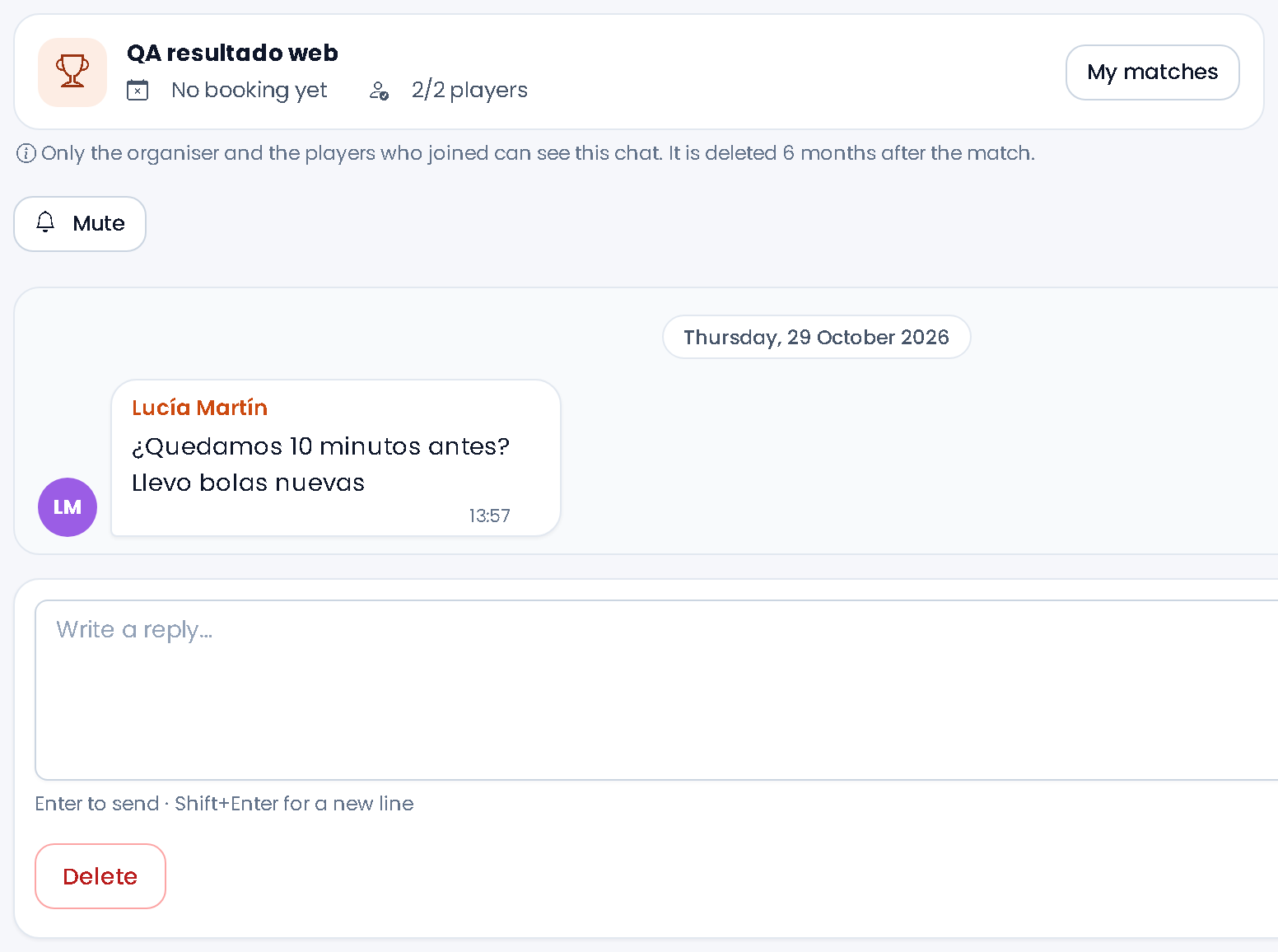
Every match (and every table game) has its own chat to arrange things, say you are running late or change something. Open it with the "Chat" button of the match in My matches (in the app, with the speech bubble icon on the match screen). The chat is created with the first message and, from then on, it also shows in Notices › Messages.
- Who sees it: only the organiser and the players who joined. Whoever joins later also sees the earlier messages; whoever leaves the match stops seeing it.
- Notifications: every new message arrives as a phone notification, at most one every 5 minutes per chat while you have not read it. If you don't want notifications from a chat, tap Mute (in the app, the bell at the top).
- Report and block: on someone else's message, tap "⋯" (in the app, press and hold the message) to report it —Apoing will review it— or block whoever wrote it: you will no longer see their messages or get notifications from them. You can unblock them from the hidden message itself.
- How long it lasts: the chat is deleted 6 months after the match. Community administrators do not read it.
Frequently asked questions
- Can an external player view the ranking? Yes. Using the link they receive by email, they can access their circle ranking and match history.
- Do free matches count towards my community ranking? No. Free matches only count towards your personal circle ranking.
- Can I invite someone who is not a member of my community? Yes. Any Apoing user or person with an email address can be invited to a match.
- What happens if the invitee does not accept? Until they accept, their spot stays open for anyone. The email link expires after 7 days.