Booking system for businesses: online appointments with your professionals and services
Mainly for: Business
If your business works with appointments (hair salon, barber, beauty centre, physiotherapy, a clinic, a personal trainer or an academy), Apoing is your online diary: your customers choose what they want done, with whom and at what time, on the web, in the app or from your page, with or without an account; and you see everything in a diary per professional. This article sums up everything you can do; the step-by-step guide, with screenshots, is in Businesses: professionals, services and appointment diary.
Getting started
- Create a community of the Business type and choose what kind of business it is (hair salon, beauty, physiotherapy…). We call your members customers. Create the community.
- Create a Professional calendar for each person who serves customers and set their working hours.
- Add your services with their length and price.
- Share your link, your page or the QR poster. If you are coming from another app or keep your customers in a spreadsheet, import them (future appointments too).
Want to see it first? In the business demo you see side by side how a customer books an appointment and how it shows up in your diary, without creating anything.
Your professionals, each with their own diary
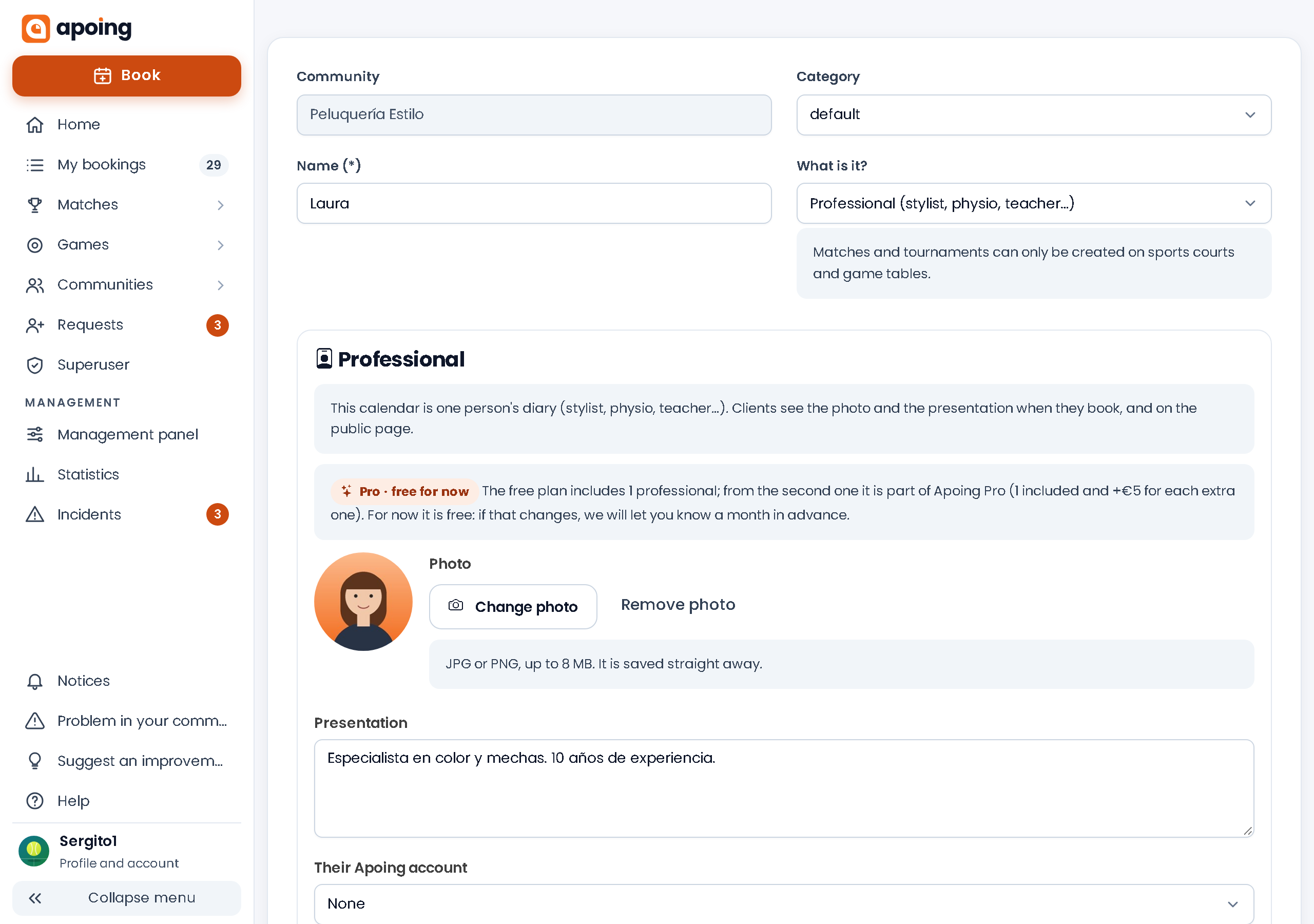
Each person who serves customers is a Professional calendar with:
- A photo and a one-line introduction ("Colour specialist"), which your customers see when booking and on your page.
- Their schedule and the slot length their diary is filled in (for example, 30 minutes).
- Their own account, if you want: the professional sees and manages only their own diary on the web and in the app (create, move and cancel their appointments, close their day, see their waiting list), without seeing the others' diaries or the business management.
Whoever manages the business and anyone with the Manage bookings role see everyone's diary. Roles and permissions.
Services, extras and questions
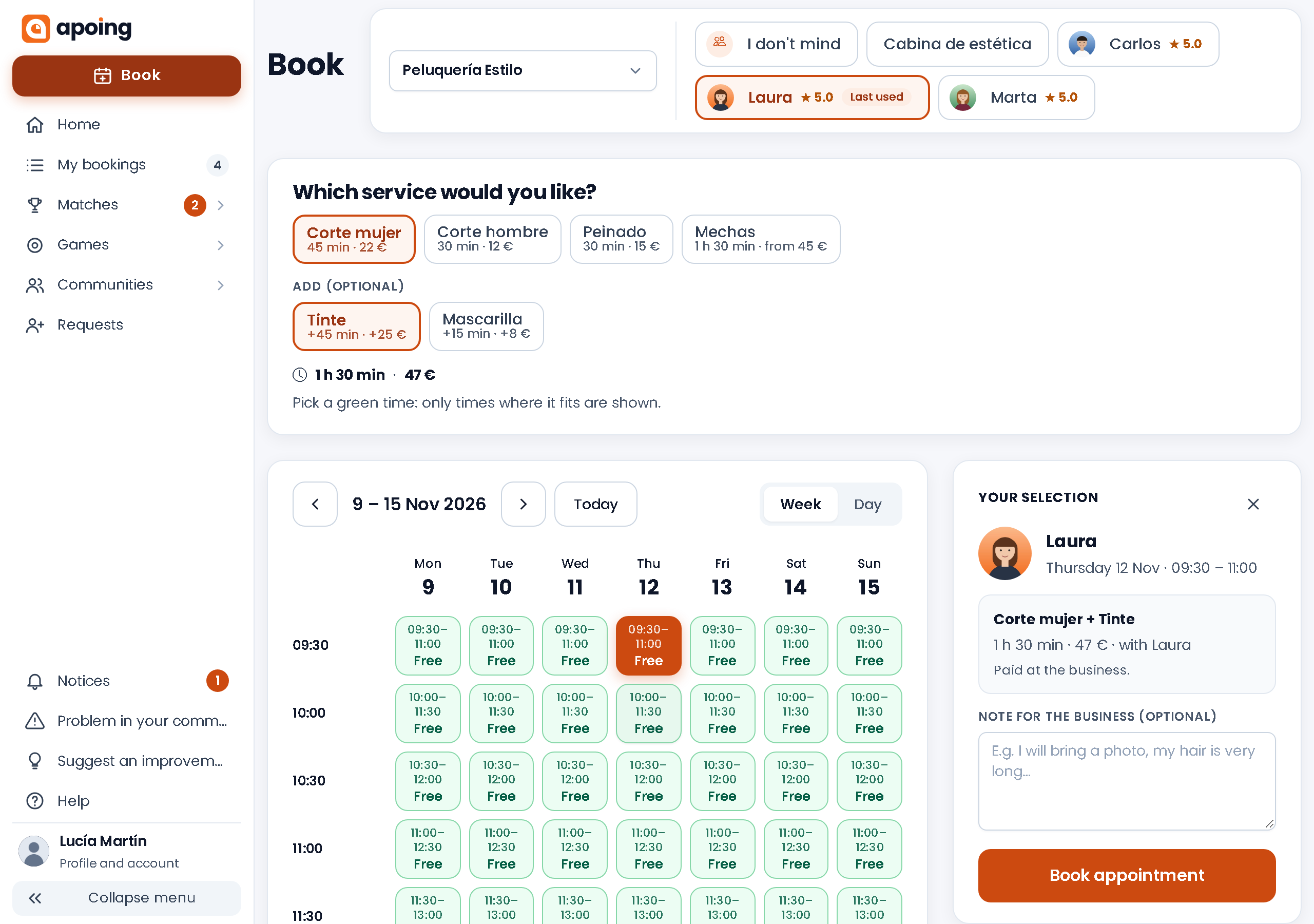
- Services with length and price (also "from"), category, description and a buffer afterwards to tidy up or prepare.
- Extras that add time and price (a colour, a mask).
- Who does each service and, if someone takes longer or charges differently, their own length or price.
- Questions when booking: what you want to know before the appointment, or a text the customer has to accept (for example, a consent form).
The price is for information: the customer sees it when booking and pays at the business. Apoing does not charge for appointments.
How your customers book
With an Apoing account (web and app)
- They choose the professional, with their photo and average rating, or I don't mind: they see the free slots of everyone who does that service and the appointment goes to one of them (with an account, to whoever has the fewest appointments that day). "I don't mind" appears when there is more than one professional.
- They choose the service and any extras, and see the total time and price.
- Only the times where the whole appointment fits show as free.
- They leave a note if they like, answer your questions and confirm. In My bookings they can change the time or, later on, book it again.
Without an account
If you turn on appointments without an account, your page gets a "Book without an account" button: the customer chooses the service, the professional (or I don't mind) and the time, and leaves their name, email and phone. They receive the appointment by email with a link to cancel it. To prevent abuse there is a captcha and each person can have at most 2 future appointments at your business. The days available follow your booking conditions; if you don't set a maximum notice, the next 14 days, and always at least one hour ahead.
The business diary
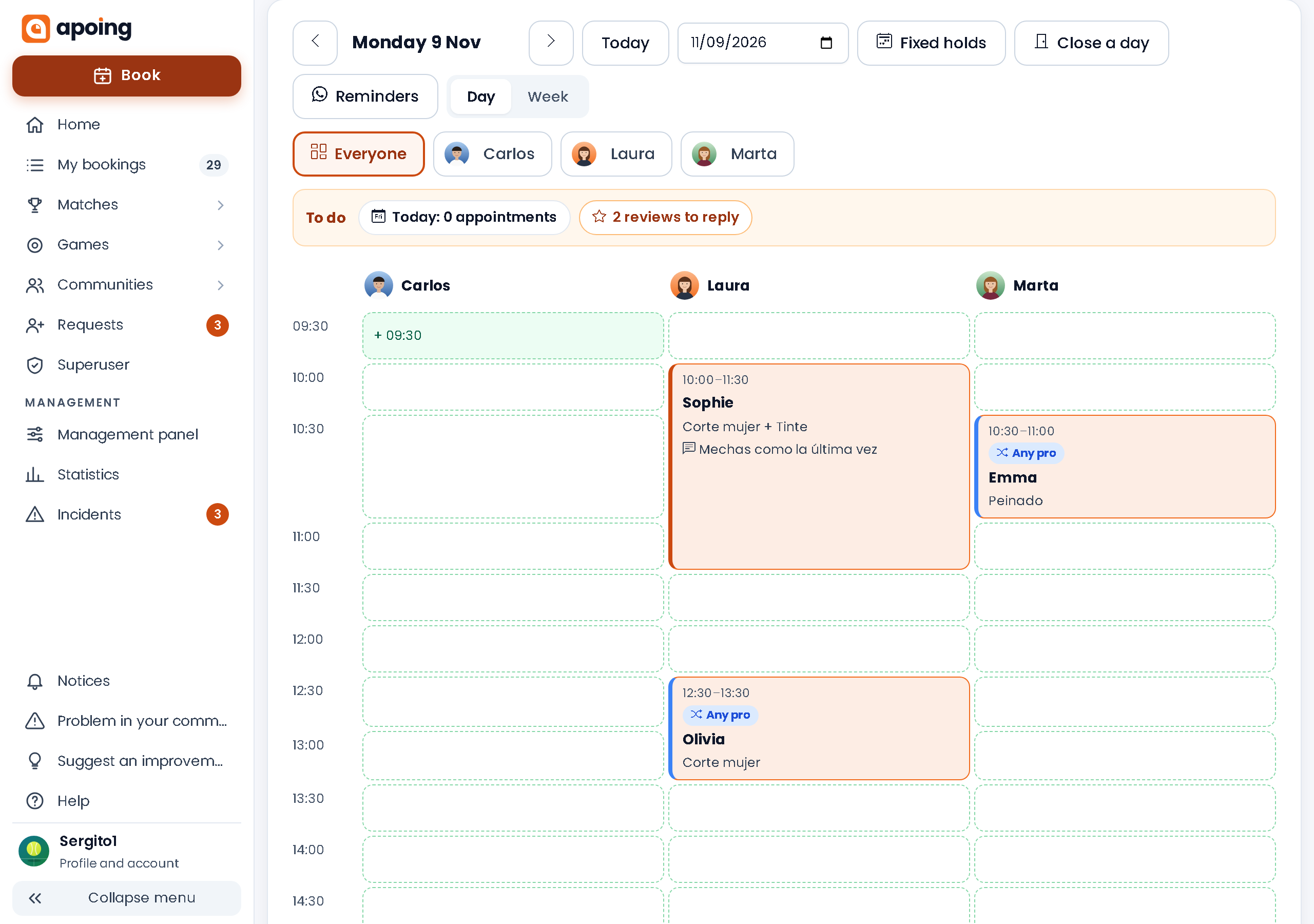
When they open Apoing, business owners go straight to their Diary. At the top, the Pending strip reminds you of today's appointments, reviews to reply to, join requests, appointments awaiting approval, the waiting list and appointments to relocate.
- On the front-desk computer or tablet, every professional in columns; on a phone, one at a time.
- New appointment in seconds: service, customer (search for them, type just a name, or create a new customer even if they don't use Apoing) and save.
- Moving or cancelling an appointment notifies the customer with a single message: in the app if they have an account, or by email if they don't. From the appointment you can also call them or open WhatsApp.
- No-show: mark whoever doesn't turn up; it counts on their record and, with the No-show rule, customers with an account can be sanctioned (customers without an account, never).
- Held slot: when you move an appointment you choose whether the slot it leaves becomes free or is held for another customer.
- Fixed holds: hours that are held automatically every week (for example, Saturdays from 10:00 to 12:00 for walk-ins).
- Close a day (or a few hours) when something comes up: free hours are blocked and we suggest the first slots where you can relocate each appointment, notifying the customer.
Appointment waiting list
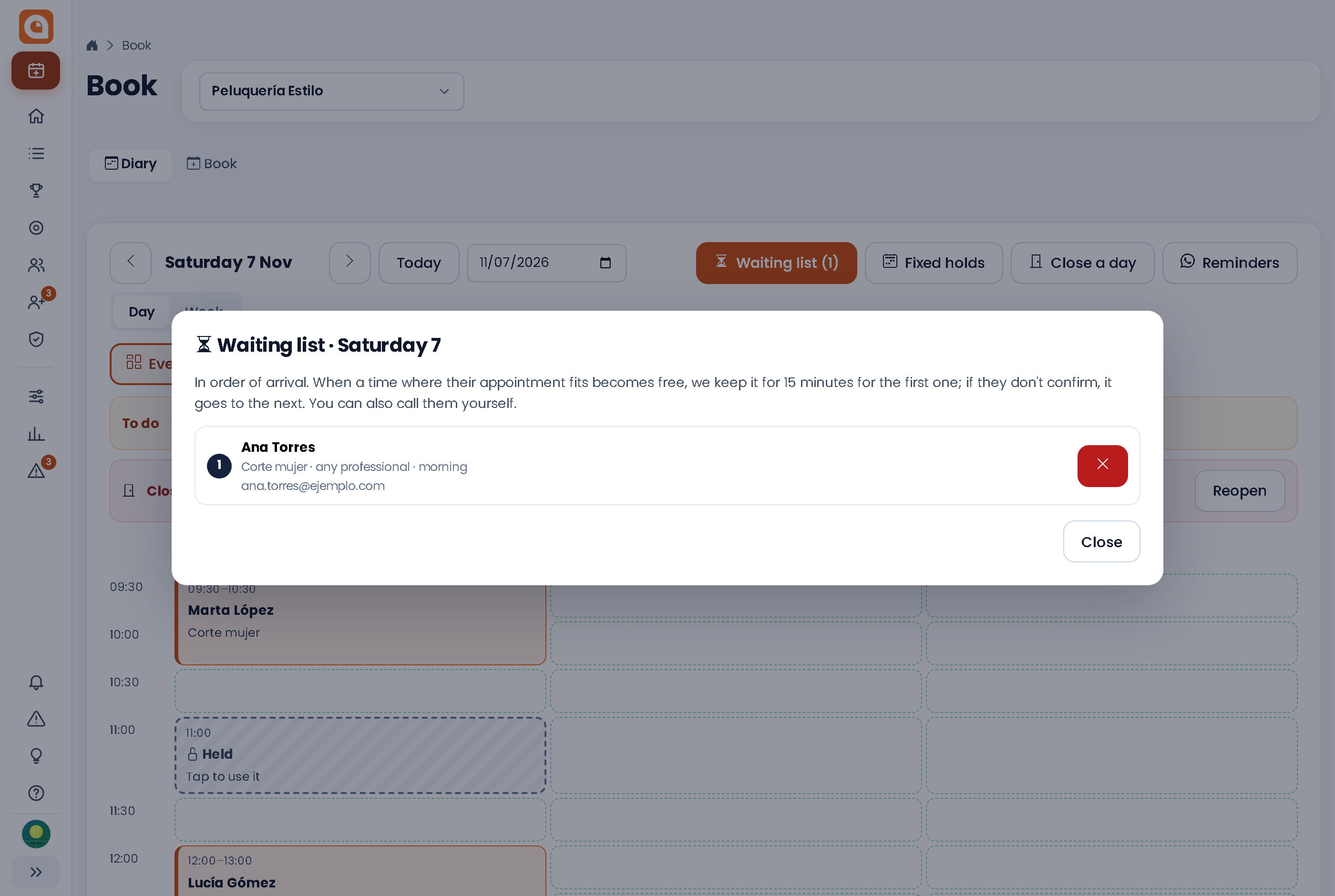
If there's no time left on a day, the customer joins that day's waiting list (morning, afternoon or any time; their professional or anyone) and sees their position. When time frees up and their appointment fits, we keep that time for the first person for 15 minutes so they can confirm it; if they don't, it goes to the next. If the time is less than 2 hours away, we notify everyone and the first to book it gets it. In the Diary you see who is waiting each day, in order.
Reminders
- Automatic, with the Reminder rule (for example, 24 hours before): by email and in the app for customers with an account, and by email for customers without an account who have an email.
- By WhatsApp, free: in the Diary, Reminders prepares the message for each of tomorrow's appointments and you send it from your own number with one tap.
- Come-back reminder (Pro · free for now): if you set on a service how many weeks customers usually come back after, we remind them to book the next appointment if they don't have one.
Reviews
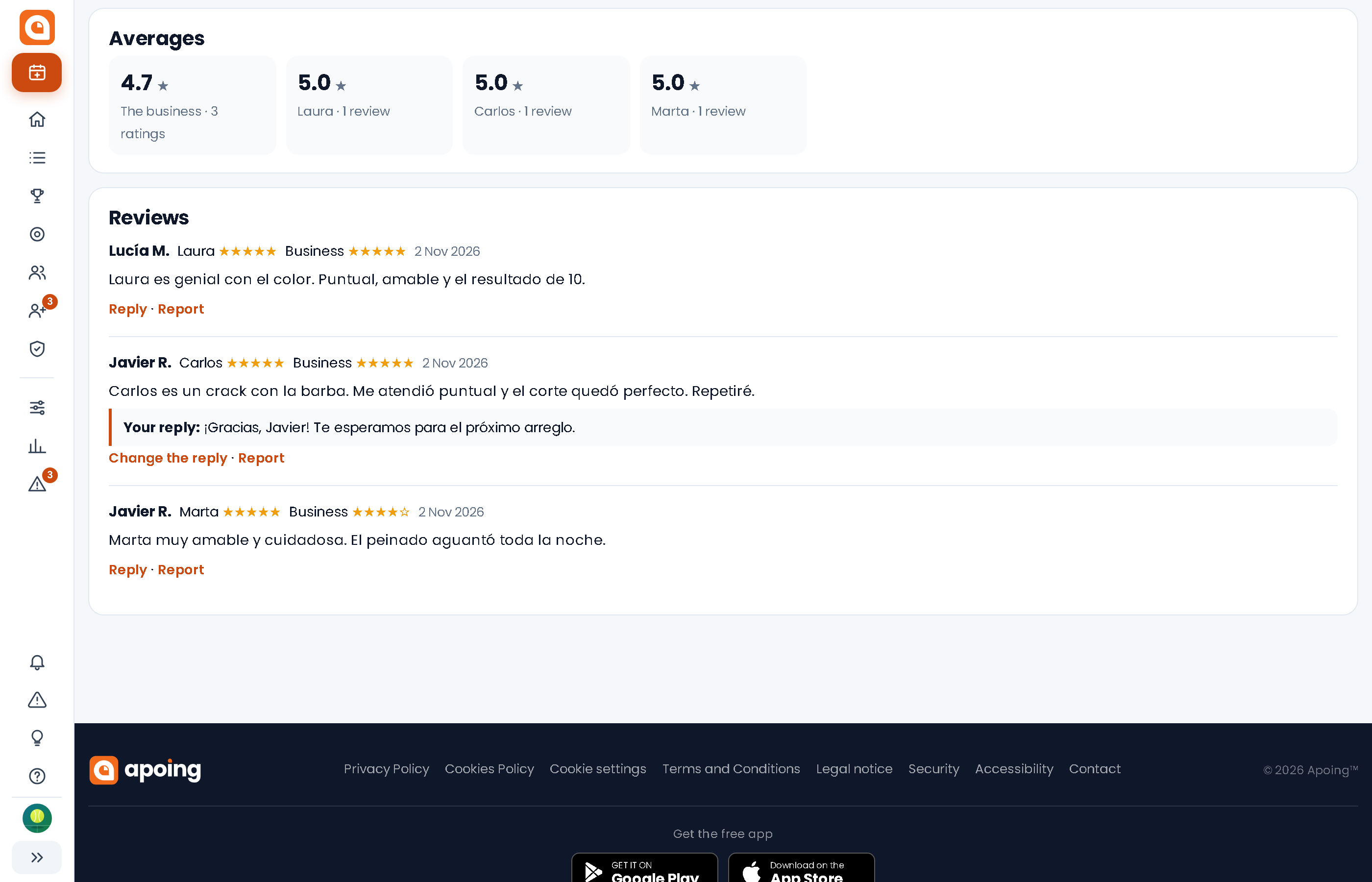
- Thirty minutes after each appointment we ask the customer with an account to rate it: they get a notification (on their phone and in their Notices list, with the Rate button) and, when rating, they see the professional's photo. They give stars for the professional and, if they want, for the business, with a comment. With Pro, if they haven't done it, one last phone notification the next day.
- Only people who had the appointment can review it, up to 60 days later, and they can change their review for 30 days. In My bookings, the "Rate your appointments" card shows until when each one can be rated and has "No, thanks" so it doesn't come up again.
- Averages are shown when booking and on your page. In Manage › Reviews you see them all and can reply.
- The business can't delete or edit them (whoever wrote one can change it for 30 days or delete it). If one breaks the rules, tap Report: with 3 reports it is hidden until we review it.
- They are published with the first name and the initial of the surname. Appointments marked as No-show don't ask for a review. You can switch reviews off on the same screen.
Your customers
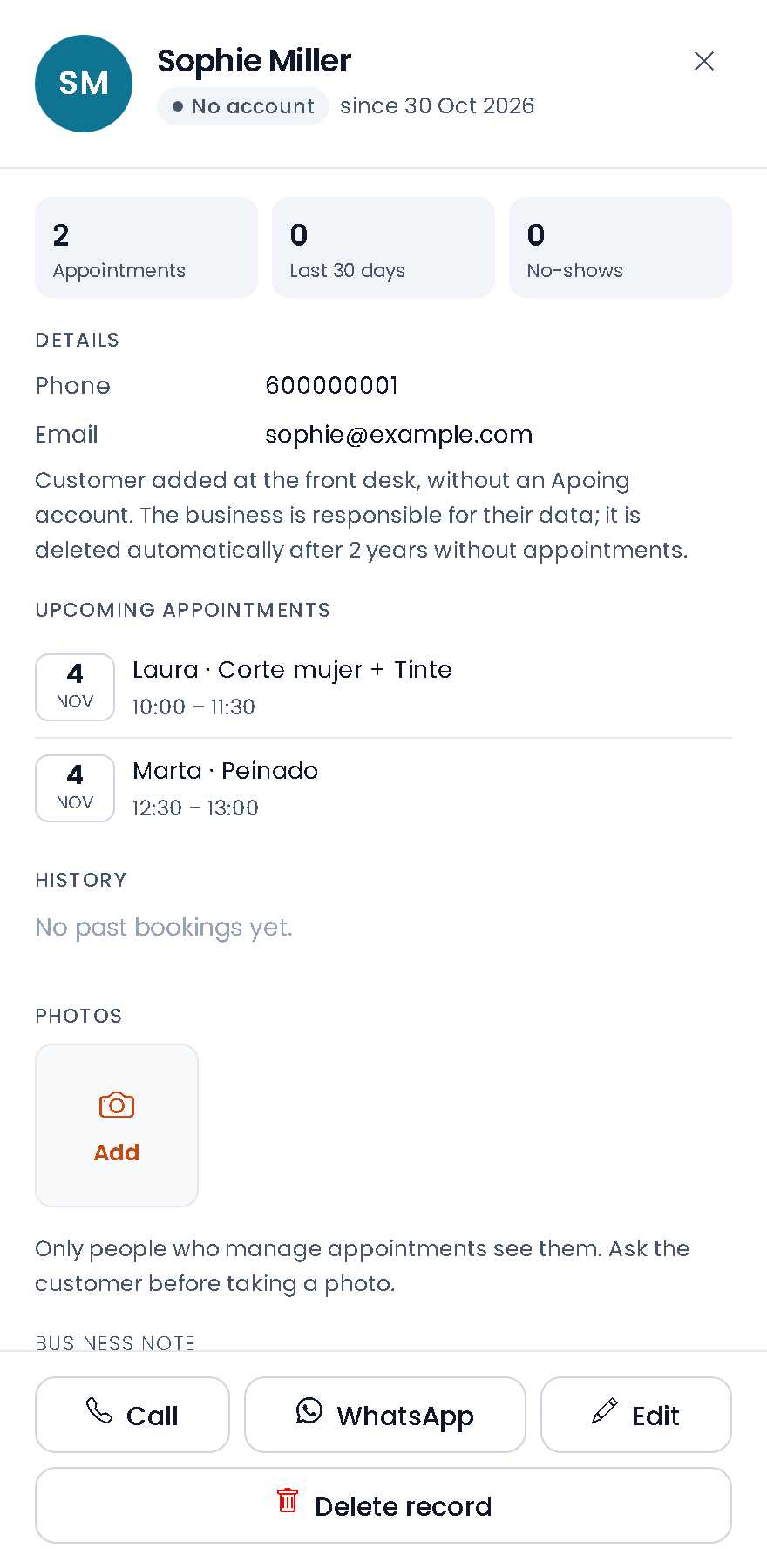
- Customer records, with or without an account: upcoming appointments, history with services, No-shows, answers to your questions and a note ("prefers afternoons").
- Photos on the record (the result of a colour, a reference), only visible to people who manage appointments at your business.
- If a customer without an account signs up with the same email, you link their record to their account and they keep their history.
- Import customers and appointments from Excel or CSV, without duplicates.
- Loyalty card (Pro · free for now): every N appointments, a reward. Customers see their stamps in My bookings and you redeem the reward from their record. It works for customers without an account too.
Business report
In Manage › Statistics and report, Usage tab, the Your business block (Pro · free for now): appointments done and upcoming, estimated income and average ticket (for guidance, based on service prices), No-show rate, new and returning customers, how many appointments the customers booked themselves, and a table per professional (with their average rating) and another per service. Also in the app. Download appointments (Excel) gives you those appointments with date, time, professional, customer, services, status and expected amount; no-shows have no amount. It is a guide and does not work as an invoice. You download it from the website and it is free.
Get found
- Your business page (apoing.com/business/your-business), with your professionals, their photos and services, your reviews, your address if you choose to show it, and the button to book.
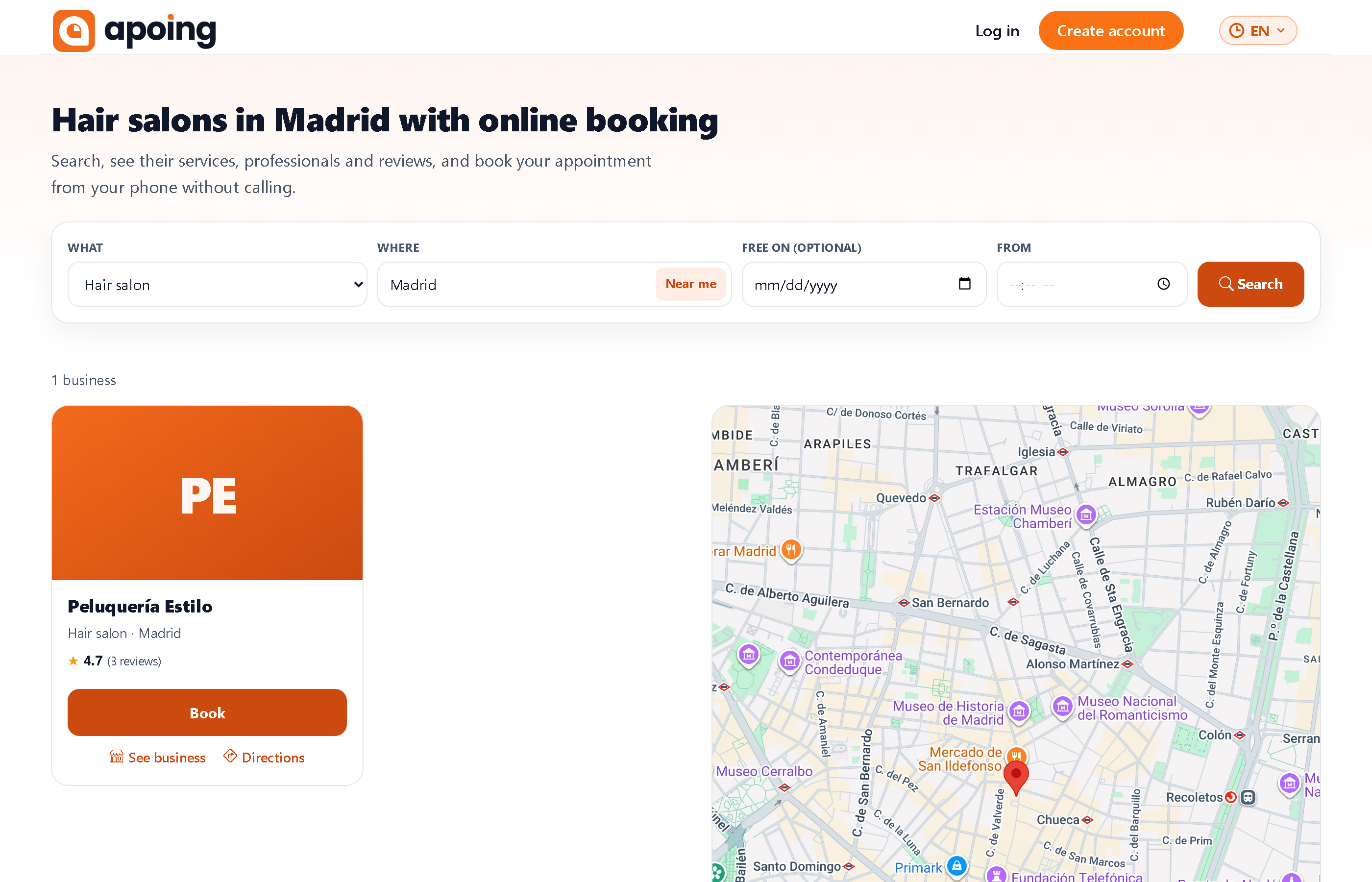
- Business finder (apoing.com/en/businesses): anyone searches by type of business and city or "near me" and sees who has a free slot at the time they choose, as a list and on a map. To appear, turn on the public page and set your city.
- Your booking-without-account link for Instagram or WhatsApp, and your page's link in the booking button of your Google business profile.
- A QR poster for the counter or the shop window.
Your customers' data
You are the controller of your customers' data in Apoing, and Apoing processes it on your behalf. Customers without an account are deleted automatically after 2 years without appointments, and record photos after 2 years. Don't write health data you don't need in the notes.
On the web and in the app
Everything works on the web and in the Apoing app for Android and iPhone: your customers book and change their appointments, and you and your professionals run the diary from your phone. The Apoing app.
Frequently asked questions
How much does it cost?
You can use it for free. Features marked as Pro (loyalty card, business report, come-back reminder) are, for now, free for every business.
Do my customers need an account to book?
No. If you turn on appointments without an account, they book from your page with their name, email and phone, and cancel from the link in the email. With an account they can also see their appointments in the app, change them, book them again and get notifications on their phone.
Do customers pay through Apoing?
No. Each service's price is for information: the customer sees it when booking and pays at the business as usual.
What happens if the customer chooses "I don't mind"?
They see the free slots of every professional who does that service and the appointment is assigned to one of them: with an account, to whoever has the fewest appointments that day; without an account, to the first one free at that time.
Can a professional see the others' diaries?
No. With their linked account they see and manage only their own. To see everyone's they need to be an administrator or have the "Manage bookings" role.
Can I delete a negative review?
No, but you can reply and your reply appears below it. If it breaks the rules (insults, other people's data, advertising…), report it: with 3 reports it is hidden until we review it.
Can I bring my customers from another app?
Yes. Export your customers to Excel or CSV and upload them in Manage › Import customers; you can also import future appointments if the professionals and services already exist in Apoing with the same name.