Community meetings — Notices, calendar and who is coming
With community meetings the administrator calls a meeting (date, time, place or video call link and agenda) and the notice reaches every member. Everyone sees the meetings calendar, says whether they are coming and adds it to their calendar. It is an Apoing Pro feature that is free for now.
It is a meeting notice: Apoing does not hold the meeting or write the minutes, and replying is only a guide. Once the administration has the minutes, they add them to the meeting and they are also kept in Community documents.
Where they are
- Website: in your community (Communities; if you are an administrator, the Management panel), Community life section, Meetings, and in each community's shortcuts on the home page.
- App: in Home › My communities, press Open on your community and go to Meetings. If you are an administrator, also in Manage › Community life › Meetings.
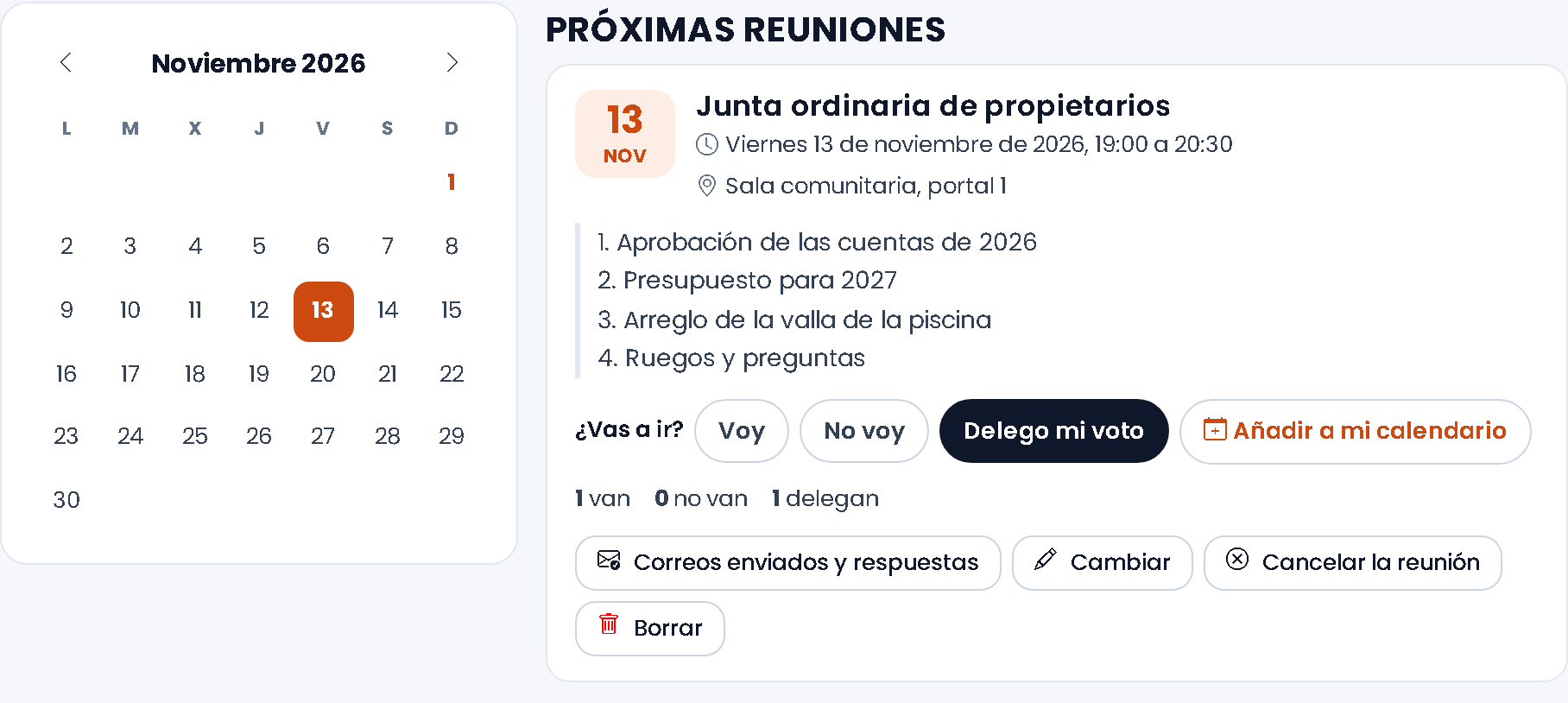
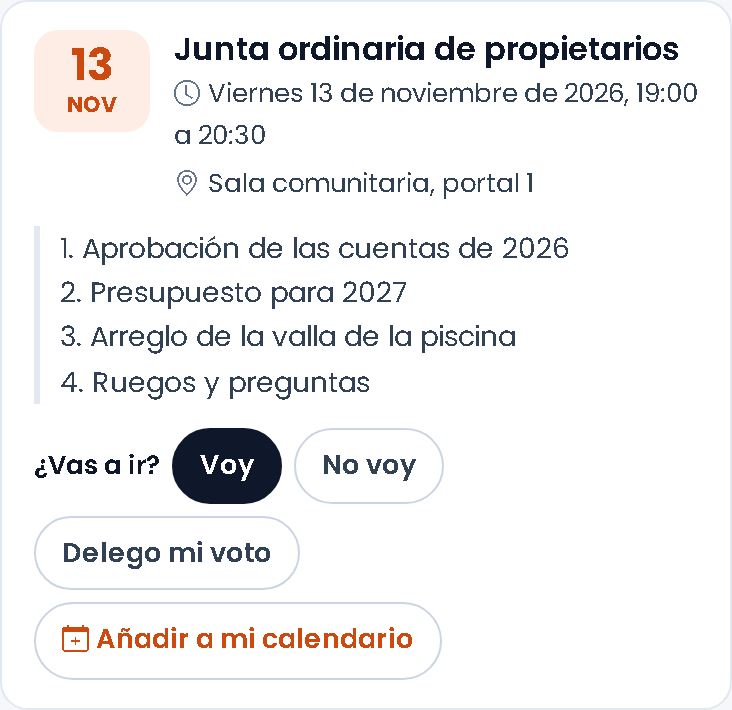
At the top is the month calendar with meeting days marked; tapping a day opens that meeting. Below are the upcoming and previous meetings.
Calling a meeting (administrators)
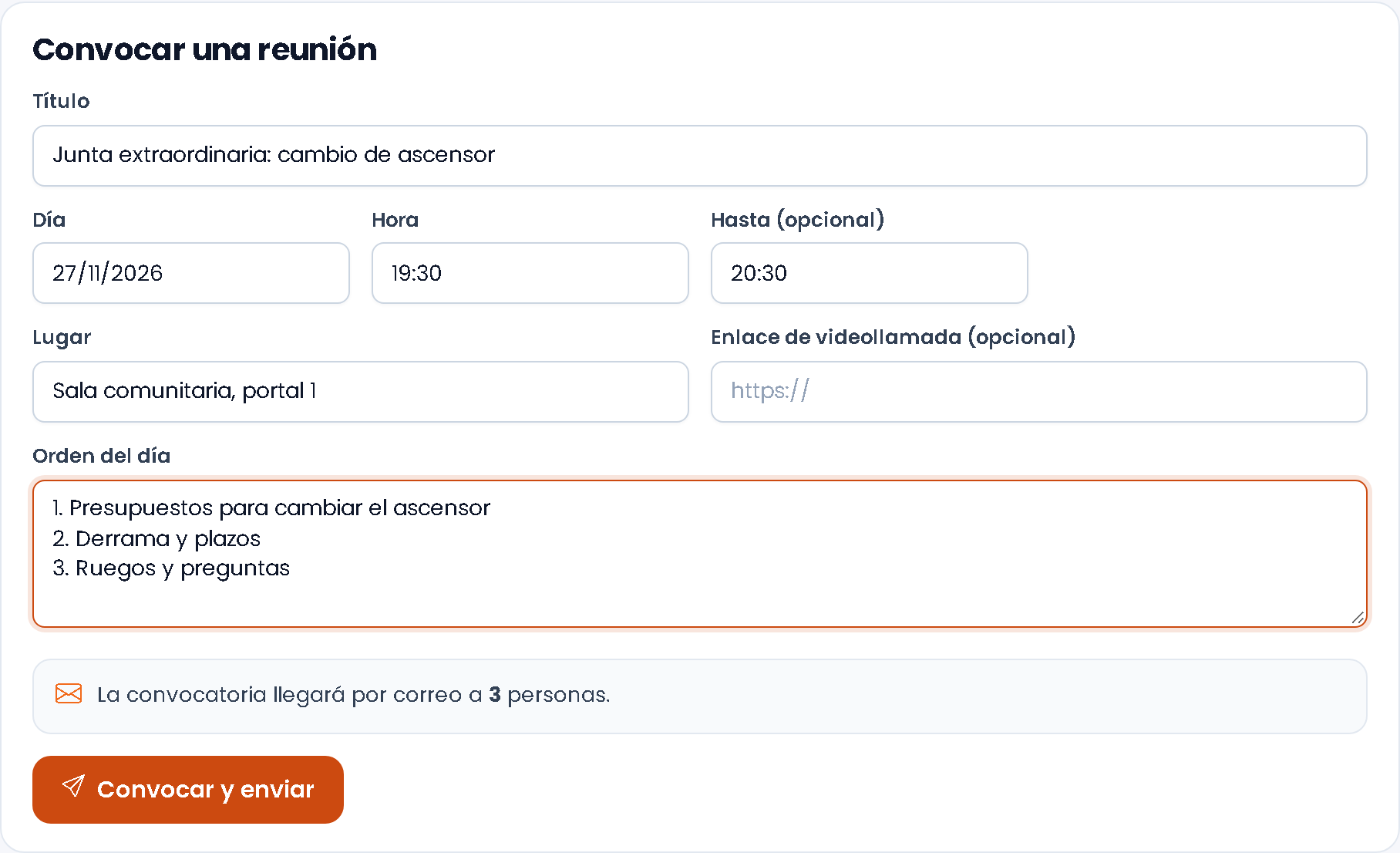
- Enter the title, day and time (and, if you like, the end time).
- Enter the place, the video call link or both.
- Write the agenda.
- Optionally, tick community documents for the meeting (budget, accounts…) or press Upload a new document: it is saved in Documents, in the folder you choose and with who can see it, and selected for the meeting. They are opened in Apoing: they are never attached to the email.
- Press Call and send. Before that we tell you how many people it will reach.
Afterwards you can edit it (if you change the day, time or place, you can let everyone know), cancel it (everyone is notified) or delete it.
The meeting minutes
Once the meeting has taken place, its card shows Add the minutes. You can:
- Upload the minutes: choose the file (PDF or image), the title (we suggest “Minutes · meeting name”), the folder (Minutes, by default) and who can see it.
- Choose from Documents, if you had already uploaded it (those in the Minutes folder come first).
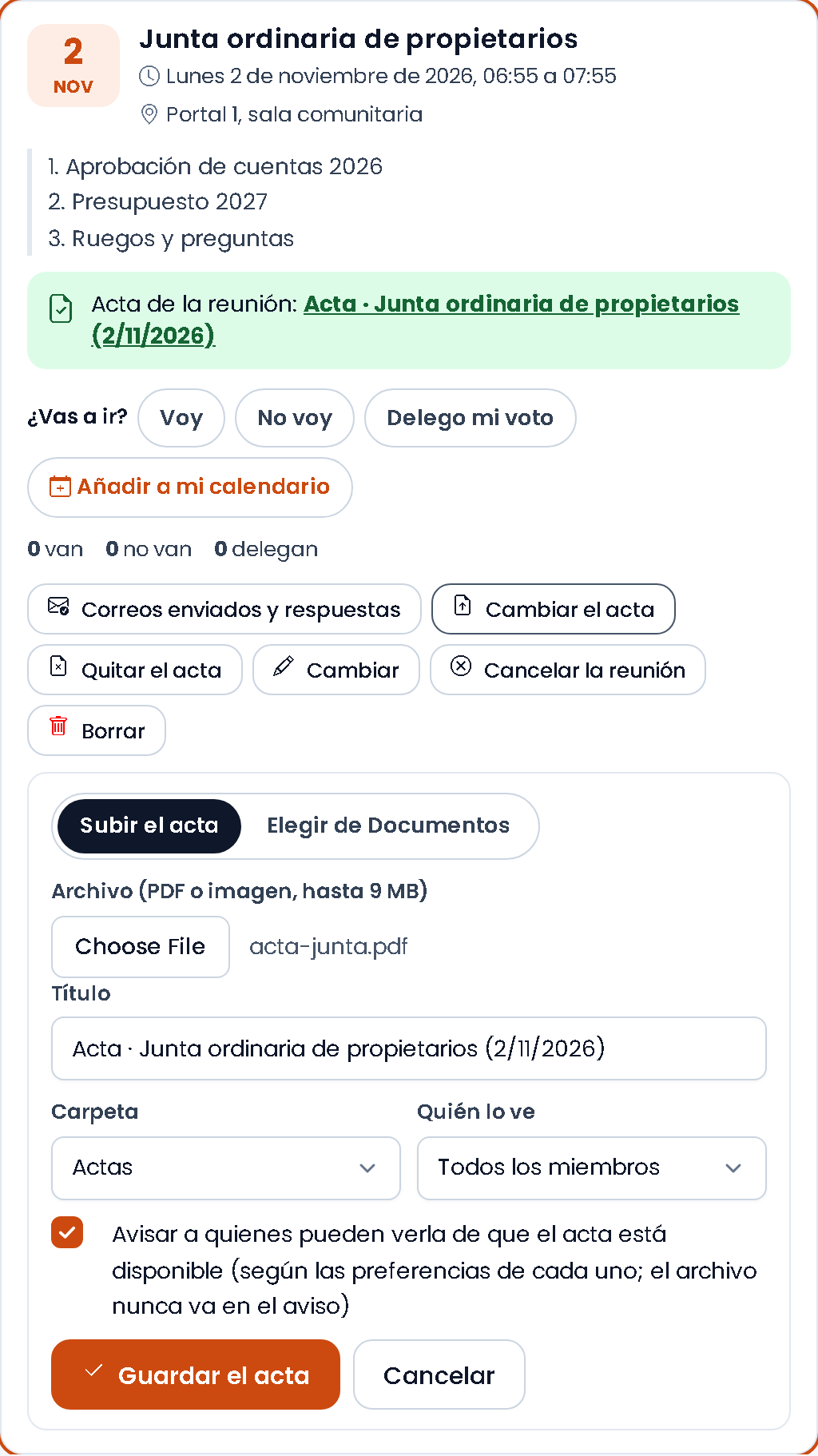
If you leave the let them know box ticked, those who can see the document get “Minutes available” in their notifications and, according to their preferences (“Community documents” type), by email and on their phone. The file is never attached: it is opened in Apoing.
The minutes are shown on the meeting, under “Previous”, and in Documents the file says “Minutes of the meeting of…” with a link to the meeting. You can change them or remove them: if you remove them, the document stays in Documents.
How the notice arrives
- By email, always. It cannot be turned off in notification preferences: the notice has to arrive.
- In their Notifications on the website and the app.
- As a phone notification, if the person has it on in their notifications («Community meetings»).
- The day before a reminder goes out, except to those who said they are not coming.
It reaches members who have validated their account and the homes' contact emails. When calling the meeting we tell you how many members have not validated it: ask them to activate it from the email Apoing sent them.
Homes with nobody or with an account not validated
In Homes (community panel) you have filters to see at a glance the homes with nobody registered, those with residents whose account is not validated, those with only a contact email and those with a request. A notice at the top reminds you that those homes do not receive the community's emails.
Tap a home with nobody to add the email of whoever lives there. We send them an invitation to join with that home and, until they create and validate their account, they receive meeting notices and documents for everyone by email (never the file). By adding it you confirm this person gave you their email for the community's communications. An unaccepted invitation is deleted after 6 months. To remove a contact email, tap the home's blue envelope: it stops receiving notices.
Who is coming and who received it
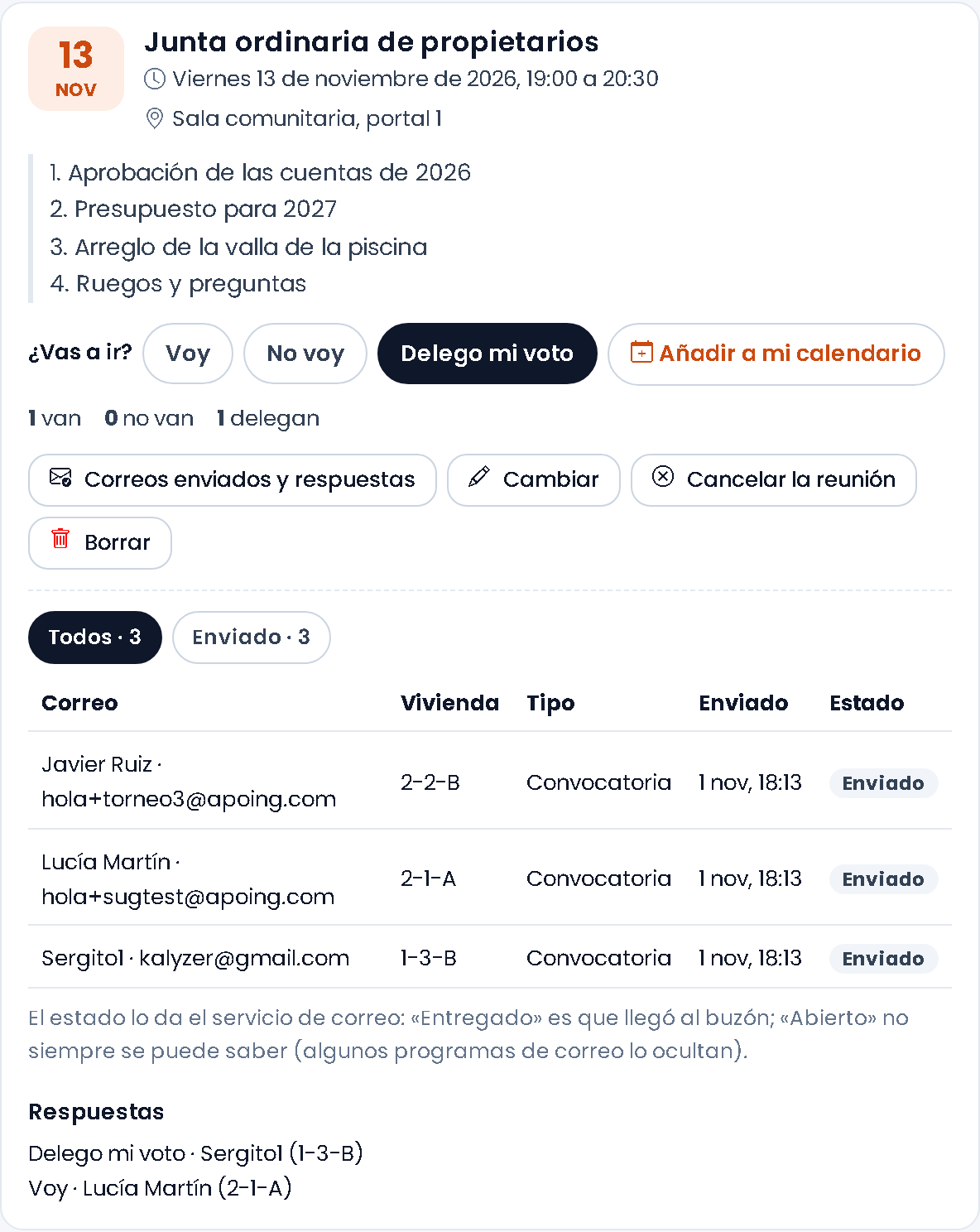
For each meeting the administrator sees how many are attending, not attending or delegating, and in Emails sent and answers:
- Every email sent (notice, reminder, change or cancellation), to whom and their home.
- Its status, as reported by the email service: Sent, Delivered (reached the inbox), Opened (cannot always be known: some email apps hide it), Bounced or Spam. You can filter by status.
- The list of answers: who is attending, who is not and who is delegating.
Privacy
- The community is the controller of this data and Apoing processes it on its behalf, under the processing agreement in our Terms.
- The log of emails sent and their status is deleted after a year.
- Your answers and the notices you received appear in Download my data. If you delete your account, your answers and your email in the log are deleted.