Incidents: report what breaks and follow it until it is fixed
When something breaks in your community (a light bulb, a door that does not close, a torn net), any member can report it from the website or the app. The administrators see it straight away, reply and change its status until it is fixed. Whoever reported it gets a notice with every update.
Report an incident
On the website you have three ways in:
- On Home, the notice “A problem in your community? Tell the administrators”.
- In the menu, Contact community.
- In Communities, when you open your community, the Incidents card (“Report a problem and follow it up”).
The first two open the “Your community handles this” window: choose the community (if you belong to several) and press Open an issue.
In the app, in the Incidents tab of Notifications, in More › Incidents or, inside your community (Home › My communities › Open), in Incidents.
Press New incident and fill in (in the app, if you belong to several communities, first choose which one it is for):
- Title (required): a short summary, for example “Light out on padel court 2”.
- Description (optional): what happens, where, since when and whether it repeats. The more information, the sooner it can be fixed.
- Photos (optional): up to 3, in JPG, PNG or WEBP, 2 MB at most each.
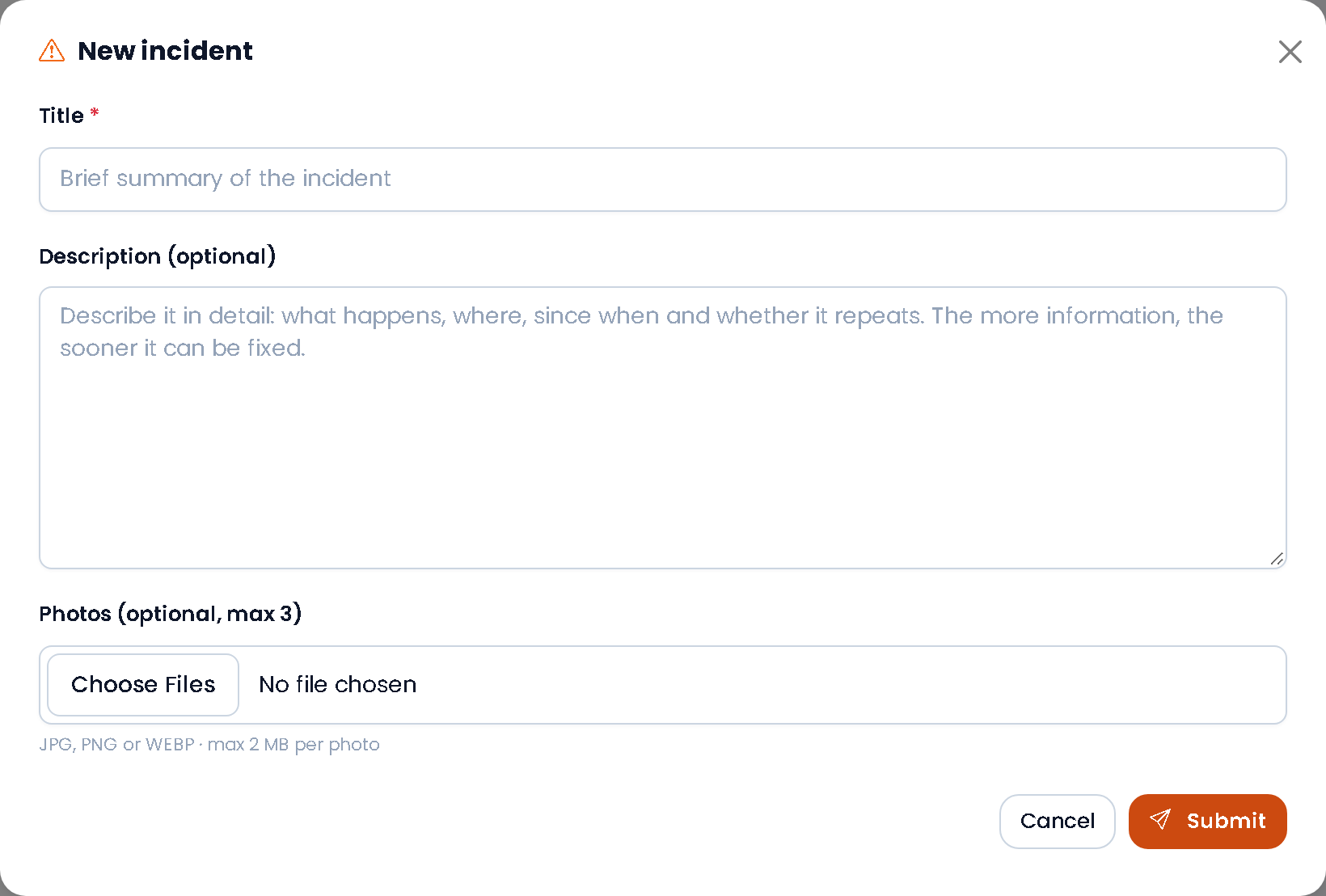
When you press Submit (in the app, Submit incident), the community administrators get a notice.
Follow your incidents
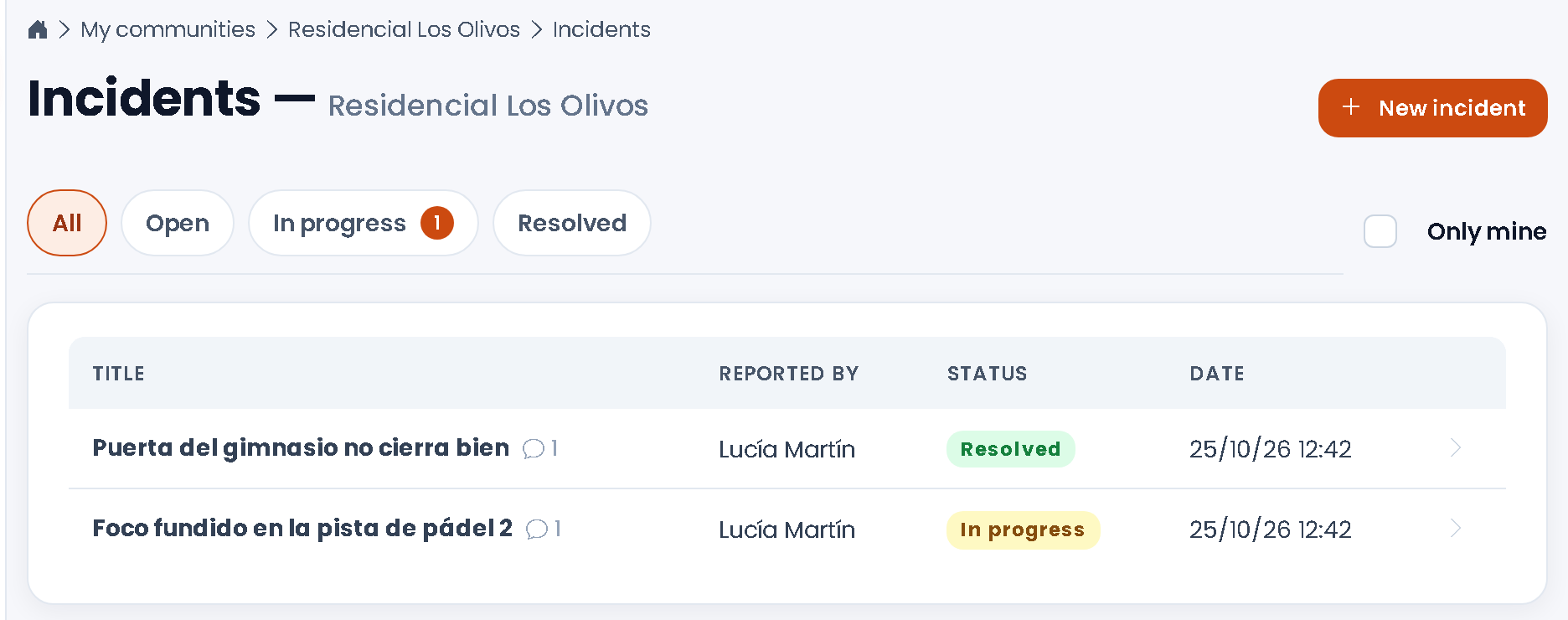
The list shows each incident with who reported it, the date and its status:
- Open: just sent, not handled yet.
- In progress: the administrators are on it.
- Resolved: fixed.
You can filter by status (All, Open, In progress, Resolved) and, if the community shows all incidents to members, tick Only mine. You can also narrow them down by the date they were opened with From and To. Press an incident to see its photos, the administrators' replies and the status changes. Every time the status changes or someone replies, you get a notice.
Handle them (administrators)
At the top you can see how many there are in each status and the average time to resolve them. Those numbers change with the From and To dates, and tapping one shows only those in that status.
In the community's Management panel, under Day to day, open Incidents. When there is an open one, you also have it in the menu, under Management, with the number of open ones. In the app, Manage › Day to day › Incidents. When you open an incident: If you manage several communities, Incidents in the menu lets you choose the community and shows how many are open in each.
- You see the description, the photos and the whole history of replies.
- In Reply you choose the new status (or leave it as it is), write a reply if you want and press Save and notify. Whoever reported it gets the notice straight away.
Who can see incidents
This is set in the community settings (Management panel › Edit Community; in the app, Manage › Location and options):
- Incidents visible to members: on, every member sees every incident, so nobody reports the same thing twice. Off, each member only sees their own.
- Members can comment on incidents: on, any member can add a comment (for example, “it happens to me too”). Off, only whoever reported it and the administrators can comment.
Frequently asked questions
Can I report something that is not a specific facility?
Yes. The incident belongs to the community: it can be a court, the entrance, the lift or any shared area.
I am not getting notices about my incidents
Check your notifications: community notices can be turned on or off by type, and on your phone you need the app with notifications allowed.