Public page and QR poster: get found and let people join
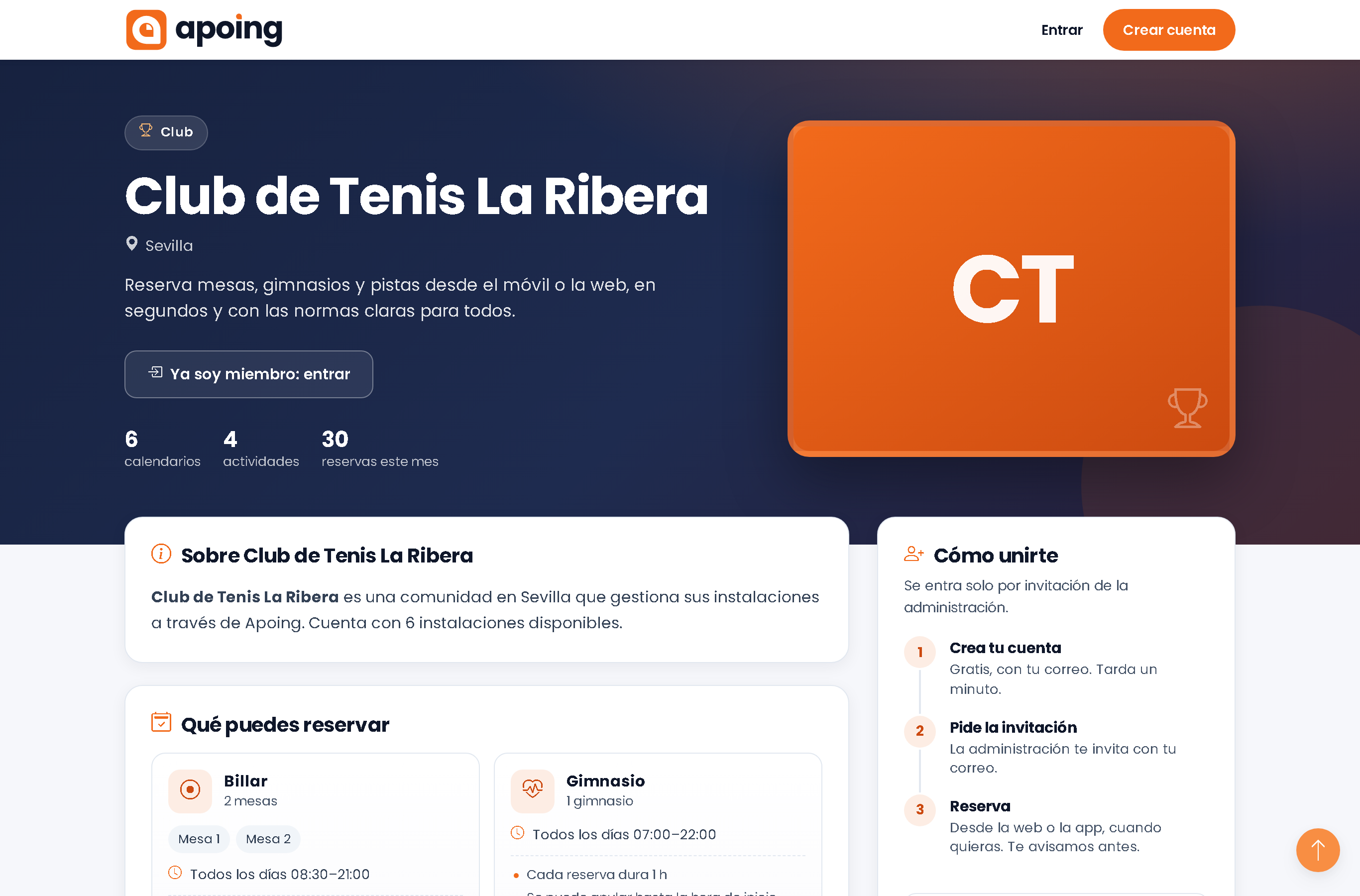
The public page is your community's, club's or business's own page on apoing.com: anyone can see what can be booked and how to join or book an appointment, and get in from there. The QR poster leads to that page: print it, put it on the door, the notice board or the counter, and whoever scans it with their phone lands straight on it. Without a public page, only members can see your community.
Turning on the public page
- On the web, open the community's administration and go to Edit community. In the app, go to Manage › Location and options.
- In the Public page block, choose Yes: its own page with posts and a join button (in the app, turn on the Public page switch).
- Check the address and what is shown (see below) and save.
You can turn it off at any time by choosing No: the address stops opening the page, but it is kept: if you turn it back on later, it comes back with the same address and the poster you printed still works.

Your page's address
Community url holds the end of the address. If you leave it empty, we suggest one from the name, without spaces, accents or symbols (for example, «Las Acacias Residences» → LasAcaciasResidences). You can change it, and the full address is shown under the field.
- The beginning depends on the type and the community's language: for an English-language community, apoing.com/business/… for businesses, apoing.com/townhall/… for town halls and apoing.com/comunity/… for the rest (for a Spanish-language community, /negocio/, /ayuntamiento/ or /comunidad/).
- Only unaccented letters, numbers, hyphens (-) and underscores (_) are allowed.
- Every address is unique. If you type one that another community already uses, you'll see «Not available or not valid» and need to choose another. If we suggest it and it's taken, we add a number at the end (…Residences2). That way a different community never opens by mistake.
- The address can only be changed on the web, not in the app.
- If you change the address, the old one stops working: print the poster again and update any links you have shared.
What is shown
The name, type, town, photo, description, what can be booked, how to join and posts marked as public are always shown. Members' data is never published.
Under What is shown you choose the rest:
- Opening hours: the hours of each category. On by default.
- Main rules: how far ahead, length, limits and cancellations of each category. On by default.
- Tournaments and matches with places: without players' names. On by default, but never shown for residents' communities.
- Figures: number of members and bookings in the last month. On by default. Members are only shown from 5 and the month's bookings from 20.
- Address and map: useful for businesses and clubs so people can find you (with a Get directions button). Off by default: for a residents' community it's usually better not to show it. The map is from Google Maps and only loads if the visitor taps Show the map.
- «Write to the administration» button (Write to the business for businesses): visitors can send you a message without joining. It arrives at the administrators' email and you reply to it; your email is not shown and Apoing does not keep the message. Off by default.
Public page photos: in the same block, with Add photos, upload up to 12 photos of the facilities (courts, pool, rooms, the premises…), up to 8 MB each. They are saved straight away and appear in the page's gallery. Photos are managed on the web.
Public posts: when you create a post, set Visibility to Public (in the app, turn on Public) and it will appear under News on the public page, also for people who are not signed in. More in Posts.
Joining or booking from the page
The main button depends on Who can join? (in the security section of Edit community):
- Open: the button says Join for free and the person is in straight away.
- By request: the button says Ask to join; the request reaches you and you accept or decline it.
- Invitation by email only: there is no join button; the page explains that membership is by invitation from the administration.
- For a business, the button is Book an appointment. If you have turned on booking without an account in Services, customers can book without creating an account (also with the Book without an account button next to your professionals). More in Booking system for businesses.
If the community asks for something when joining (for example, the home or the member number), the page says so under How to join. Existing members have the I'm a member: sign in button.
Appearing in the Apoing search
Besides the public page, communities appear in the Apoing search (also in «near me») so people looking for them can find them. In Edit community, next to the community type, there is the Appear in the Apoing search box, ticked by default. If you untick it, it won't show up when searching or in «near me»; people can still join with the link, the QR code, an invitation or the public page.
In the app, this box is under Manage › Location and options.
Businesses: also choose What kind of business is it? (hair salon, beauty, physiotherapy…). Businesses also appear in Apoing's business directory (apoing.com/en/businesses), by type and city, if their public page is on and they are not hidden from the search. Only those showing their address appear on its map.
The A4 QR poster
The poster is an A4 sheet ready to print with your community's name, what can be booked and a large QR code leading to your public page. The wording adapts to the type: «Join here» for a residents' community, your court or table for a club, «Book your appointment online» for a business.
Only administrators have it, in:
- the QR poster button in the header of the community panel and its card in the panel;
- next to Invite user, in Users;
- under Public page in Edit community: Print the poster with this page's QR code;
- in the app, under Manage › QR poster or with the QR button in the header: it opens in the phone's browser, without signing in again.
To make it:
- Choose the style: Light, Orange (the default) or Dark. The last one you used in that browser is remembered.
- Choose the poster's language: Español or English. By default, the community's.
- Press Print or save as PDF. In the print dialog choose A4, no margins and Background graphics on.
If you don't have any calendars yet or the public page is off, instead of the poster you'll see Before printing the poster, with links to create the calendars or turn on the page.
Privacy
- The public page never shows members' names, emails or bookings: only what you choose under What is shown.
- Tournaments and matches appear without players' names.
- If you'd rather your community isn't visible outside, leave the public page on No; your members keep getting in as usual.