Posts: notices on the board and a notification on the phone
Posts are the administrators' notices: Tuesday's water cut, the pool opening, the new rule for the common room. They appear on every member's Home and, if you want, members also get a notification on their phone.
Publish a notice
In your community's Management panel, open Publications and press New Publication. Fill in:
- Visibility:
- Private: only members see it, on their Home.
- Public: it also appears on the community's public page, which anyone can see without signing in, as long as the community has public visibility turned on in its settings.
- Title and Subtitle.
- The text, with bold, lists, links, images or a YouTube video.
Press Post to publish it now, or Save without publication to keep it as a draft and finish it later.
Notify phones
Below the text there is the box “Notify members on their phone”. It is unticked: tick it only when the notice is worth it.

- The notification is only sent when you press Post, not when you save a draft.
- At most one notification a day per community is sent, so it is not annoying. If one was already sent today, the box is disabled and you can send another tomorrow.
- It reaches members who have the app, with the community name as the title, and tapping it opens the post. Members who turned off community notices in their notifications do not get it.
Where members see it
- On the website, on Home. Members of several communities can filter by each one.
- In the app, in the Home tab, under Feed.
- Public posts also appear on the community's public page.
Edit or remove a post
Publications lists your posts with their visibility and their creation, last edit and publication dates.
- Edit opens a post so you can correct it. When you are done, press Post so it is shown with the changes.
- To take it down without deleting it, open it and press Save without publication: it stops showing on the members' Home (and on the public page) until you press Post again.
- The bin deletes it for good.
Post from the app
In the app, go to More › Manage communities, choose the community and tap Wall posts. With New post you write the Title and the Message, choose whether it is Public (also visible on the public website) or only for members, and you can tick Notify members on their phone (with the same limit of one notification a day per community). When you tap Publish it goes out straight away; from the same list you can edit or delete it. Images, videos and the subtitle are added from the website.
You see these options if you are an administrator or have a role with permission for posts.
Writing to just some people: send a message
A post is seen by the whole community. If you only want to write to some people (one block, a group, those who have not booked for months…), send them a message: it reaches their Notices › Messages, they can reply to you and, if they have it on in their notifications, also by email or on their phone.
From Manage users
In the Management panel, open Manage users: tick the people in the list (you can filter first by group, role or status) and press Send message in the bar at the bottom. Write the Subject and the Message and press Send. You can also write to one person with the Message button on their card. In the No bookings 90+ days tab, Write to them prepares a message for all of them with a suggested text you can change. In the app, the same from Members: select the people and tap the message icon.
From Notices
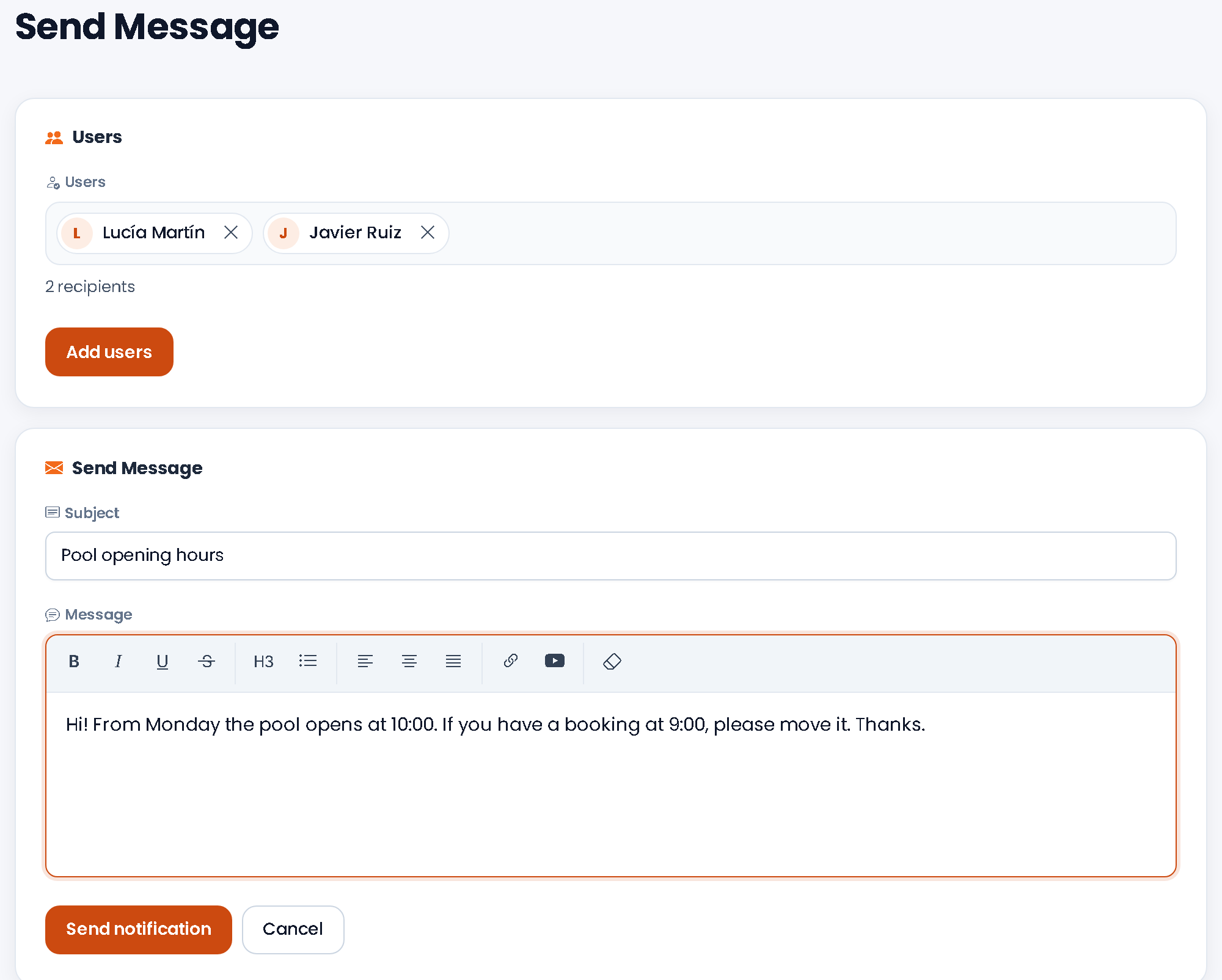
- In Notices, Messages tab, press Contact with users. The Send Message page opens.
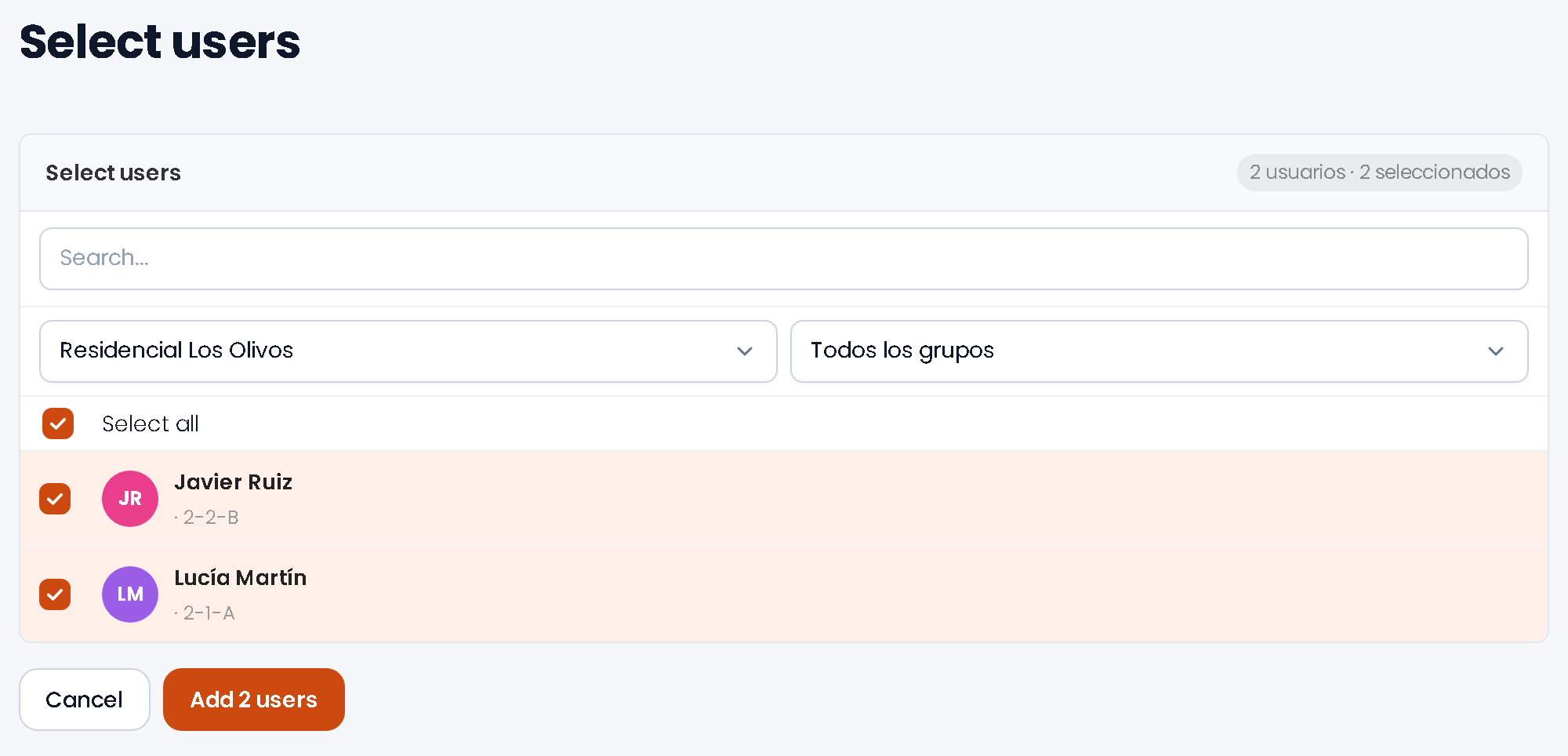
- Press Add users. You will see the people in your communities: search them by name or filter by community and group, and tick them (or use Select all). Press Add N users to go back to the message with them, or Cancel to go back without changing anything.
- Recipients are shown as chips with their name; the × on each chip removes that person.
- Write the Subject and the Message and press Send notification.
Each person gets the message in their Notices › Messages, and the conversation also stays in yours so you can follow it. More in Notices and messages.