Your account: staying signed in and devices — Keep your session or sign out from anywhere
When you sign in to Apoing on the website you can ask it to remember you on that phone or computer, so you don't have to type your password every time. In Authorised devices you can see on which devices you asked for this and sign out of any of them.
Sign in with Google or Apple
In the Sign in window (and in the sign-up one) you can press Continue with Google or Continue with Apple instead of typing a password. Apoing looks your account up by the email of that Google/Apple ID: if you already have one, you sign in to it; if not, a new one is created with that email, already activated.
- If you use Apple's hide my email option and there is no account with that alias, we ask for your real email: if an account already exists with it, we send you a link to confirm it is you before linking; if not, it is created and you get the usual activation email.
- If you had no account, one is created when you continue, and by doing so you accept the Terms and Conditions and the Privacy Policy (it is recorded in "What you have accepted").
- Your Apoing password still works: you can sign in either way.
- If two-step verification is on, it is asked when signing in with Google or Apple too.
Keep me signed in
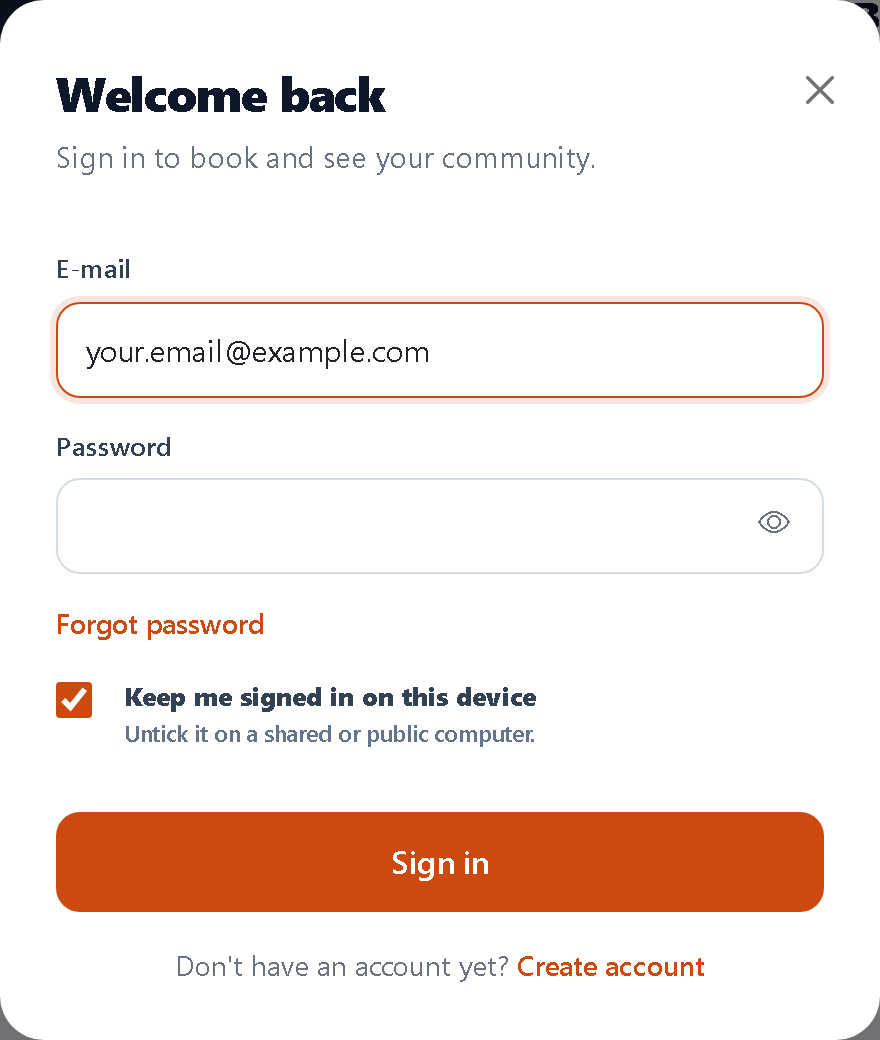
In the Sign in window you'll see the box “Keep me signed in on this device”. It comes ticked, because people almost always sign in from their own phone or computer:
- Ticked: Apoing will remember you on that browser. Even if you close it, next time you'll go straight in without typing your password.
- Unticked: the session lasts while you use the website. If you close the browser or leave it unused for a while, it will ask for your password again.
Untick it on a shared or public computer (at work, in a library, at someone else's home), so nobody can use your account afterwards.
See your devices
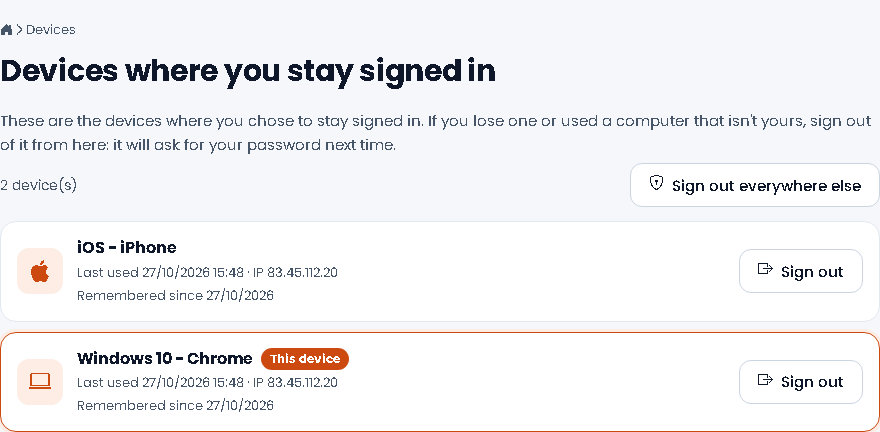
Open your account menu (your name, bottom left on a computer, or the menu on a phone) and go to Authorised devices. You'll see one card for each device where you asked to stay signed in:
- The system and browser (for example “iOS - iPhone” or “Windows 10 - Chrome”).
- The last time it was used and the IP address it was used from.
- Since when it has been remembered.
- The one you're using right now is labelled “This device”.
Alert when signing in from a new device
When someone signs in to your account from a browser or phone we hadn't seen before, we send you a "New sign-in to your account" email with the device, the date and time, and the IP address.
- If it was you, you don't need to do anything: next time that device is already known and you won't be alerted again.
- If it wasn't you, change your password as soon as possible (Profile › Change password; this also signs the app out on every phone) and, in Authorised devices, sign out the ones you don't recognise. We recommend turning on two-step verification.
We don't send an alert for the first sign-in of a newly created account, or when you sign in from your usual browser. If you clear your browser's cookies or use a private window, you may get an alert as if it were new. When Apoing support looks at an account to help you, no alert is sent (it is logged).
Sign out of a device
If you've lost your phone, changed it or signed in on a computer that isn't yours, tap Sign out on its card and confirm. That device is no longer remembered: next time someone opens Apoing on it, they'll have to type the password.
To sign out of all of them at once, tap Sign out everywhere else: every device is signed out except the one you're using.
If you think someone knows your password, sign out of all of them and then change it in Change password, in the same account menu.
What about the app?
In the Apoing app you stay signed in until you sign out from your profile, and if you unlock it with your fingerprint or face, that does not change. On the same Authorised devices page of the website, below the browsers, you will see an Apoing app section with every phone where the app is signed in: you can sign out of one of them or press Sign out of the app everywhere. On that phone the app will ask you to sign in again next time.
You can do the same from the app, in More › View my profile › Privacy and security › Sessions and devices: you see the phones with the app signed in (yours marked This phone) and the browsers that remember your session, and you can sign one out, Sign the app out on other phones or Forget all browsers.
If you lose your phone, sign it out from there or, better, change your password: changing it automatically signs out every app session and every other remembered browser.
On the website, a remembered device stays signed in for 180 days since your last visit: every visit renews the period, so it only asks for your password again if you go half a year without using Apoing in that browser.
Two-step verification
If you want Apoing to ask for a 6-digit code from your phone on top of your password when you sign in, turn it on in Profile and account › Two-step verification (website) or More › View my profile › Privacy and security › Two-step verification (app). You need a free authenticator app (Google Authenticator, Microsoft Authenticator, 1Password, Authy…): on the website you scan the QR code we show you; in the app you press Open my authenticator app (or copy the key). Then type the first code the app displays and you are done. From both places you can also generate new recovery codes or turn it off.
- When you turn it on we give you 8 recovery codes: keep them somewhere safe. Each works once and lets you sign in if you lose your phone (enter one instead of the 6-digit code).
- When signing in, after the password we ask for the code. You can tick "Do not ask again on this browser for 30 days" on your own computer or phone.
- The Apoing app asks for it at sign-in too. Unlocking the app with your fingerprint or face does not change.
- It is recommended for administrators and required for superadministrators. A valid code is needed to turn it off.
- If you change phones, most authenticator apps can move the codes to the new one (backup or export accounts).
If you have neither the app nor the recovery codes
- Sign in as usual (password, Google or Apple). On the code screen tap "I can't use my authenticator app or my codes". In the Apoing app it is the button with the same name in the code window.
- We send an email to your account's address. Open the link within 30 minutes: it works only once.
- The link turns off two-step verification and signs you in on the website. We recommend turning it on again in Profile and account › Two-step verification with your new phone.
- We also send you a notice that it was turned off. If it was not you, change your password and write to hola@apoing.com.
- You can ask for at most 3 emails per hour.
- Superadministrator accounts cannot do it by email: they use a recovery code or another superadministrator removes it.
What you have accepted
In Profile and account (website) or in your Profile (app), the What you have accepted section shows everything you have accepted in Apoing: signing up (Terms and Conditions and Privacy Policy), changes to your profile, the rules of each community and, if you are an administrator, your community's data processing agreement. For each one you see when you accepted it (in the community's time, with its offset from UTC), the version and the IP address you used.
We keep it so it can be proved if ever needed, and it is also included in the "Download my data" zip.
When the Terms change
If we publish a new version of the Terms and Conditions, the next time you use the website or open the app you will see the window "We have updated the Terms and Conditions" with a summary of what changes and links to the Terms and to the Privacy Policy. To continue, tick the box and press Accept and continue; if you do not agree, you can Sign out. The window cannot be closed without choosing one of the two, but you can open the Terms and the Privacy Policy to read them first.
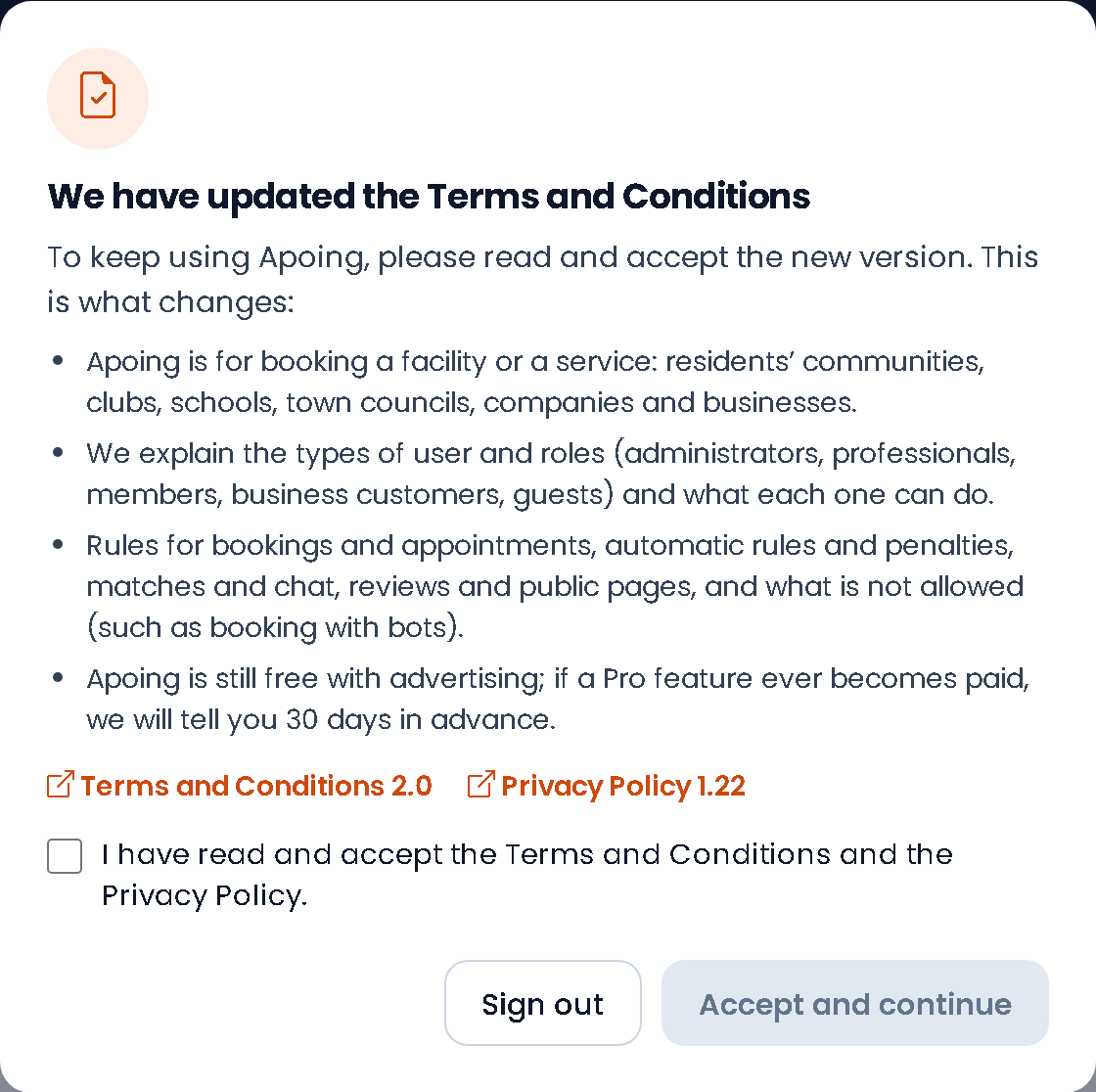
- The current version of the Terms is 2.0. It explains that Apoing is for booking a facility or a service (residents' communities, clubs, schools, town councils, companies and businesses), the types of user and roles, the rules for bookings, appointments, automatic rules and penalties, matches and chat, reviews and public pages, what is not allowed (such as booking with bots) and that, if a Pro feature ever becomes paid, we will tell you 30 days in advance.
- If you administer a community and the data processing agreement has also changed (now version 1.5, which also covers businesses: appointments, customers without an account, customer records, questions when booking, waiting lists, loyalty cards, reviews and activities), the same window has a second box to accept it on behalf of your communities. If only the agreement has changed, the window is titled "We have updated the data processing agreement".
- Every time the version of the Terms goes up, everyone is asked again.
It is recorded in What you have accepted with the date, the version and the IP address; the agreement, one line per community.
Download your data
You can take a copy of everything Apoing keeps about you. On the website, go to Profile › Privacy and security › Download my data and press Download my data (zip); in the app, in your profile (More › View my profile), Download my data section: your browser opens to save the file.
The zip contains your profile (JSON) and, as CSV (they open in Excel, Numbers or Google Sheets), among others: your communities, bookings and your answers when booking, matches and levels, issues, waiting lists, messages (also those to Apoing), muted conversations, blocked people and reports you made, surveys and votes, meetings, activity sign-ups, reviews, loyalty cards, sanctions, notification preferences, accepted rules, what you have accepted (consents), devices and sign-ins of the last 12 months. It does not include other people's data.
Apoing does not keep your data forever: sign-in logs are deleted after 12 months, read notices after 24, bookings stop being linked to your account after 5 years and, if you do not sign in for 3 years, we email you before deleting the account. The full periods are in the privacy policy.
Delete your account
On the website, go to Profile › Privacy and security › Delete my account and press Delete account; in the app, in your profile, Right to erasure section, tap Delete account. In both cases you have to type DELETE to confirm. It cannot be undone.
What is deleted: your profile and personal data: photo, phone number, sessions, devices and phone notifications, two-step verification, future bookings (and your place in other people's bookings that have not started yet), credits, waiting lists, ranking and levels, surveys, notification preferences, blocks, reports you made, linked accounts, messages to Apoing and what you have accepted. Your place in matches not yet played is freed too and pending invitations are deleted.
What is kept, without your name: what is part of a community's history: past bookings, played matches and results, tournaments, issues, votes, posts, documents you uploaded and reviews. They stay, but nobody can tell it was you. If, as an administrator, you accepted your community's data processing agreement, that acceptance is kept too (it belongs to the community), but without your email or IP address.
If you are the only administrator of a community, first make someone else an administrator: in the community panel, People › Manage users, open their card, press Edit and give them the Admin role. Otherwise the community would be left without anyone to manage it: Apoing tells you which ones and won't delete the account until then.
Frequently asked questions
Why do I see several identical devices?
Each browser counts separately. If you clear your cookies or sign in from a private window with the box ticked, it's saved as a new device. You can sign out of the ones you no longer use.
I don't see any device. Is that normal?
Yes, if you always signed in with the box unticked: only devices where you asked to stay signed in are listed.
Can someone at Apoing see my account?
Only Apoing's support team, when needed to solve an issue you've told us about, and without changing anything in your account or your devices.
It says "Too many failed sign-in attempts" and asks me to wait. What now?
To protect your account, after several wrong passwords in a row Apoing locks sign-in for a few minutes (and on the website may ask for the "I'm not a robot" box). Wait the time shown and try again; if you don't remember your password, use "Forgot your password?" and you'll get a link to change it. If it wasn't you trying, change your password to a new one.