Waitlist for bookings — How to set it up and use it
Have you ever tried to book a court only to find it already taken? With Apoing's waiting list, you no longer need to keep checking manually: the system notifies you automatically the moment a slot becomes available and gives you a window of time to confirm the booking.
The waiting list is an optional feature that administrators enable on a per-calendar basis. When active, a user can join the waitlist for a fully booked time slot. If someone cancels their booking, the first person in the queue receives a notification (in Apoing, by email and, if they use the app, on their phone) with a direct link to confirm the booking. If they do not confirm within the configured time limit, the system moves on to the next person in the queue.
How it works — step by step
1. The user tries to book a slot that is already taken
When tapping on an already-booked time slot in the calendar, Apoing offers the Join the waiting list button (in the app, the Waiting list notice with the Join list button) if the calendar has this feature enabled. In the calendar, those taken slots show Waiting list and, if you've already joined, your place: Waiting (#2). When the list is full, the option to join no longer appears.
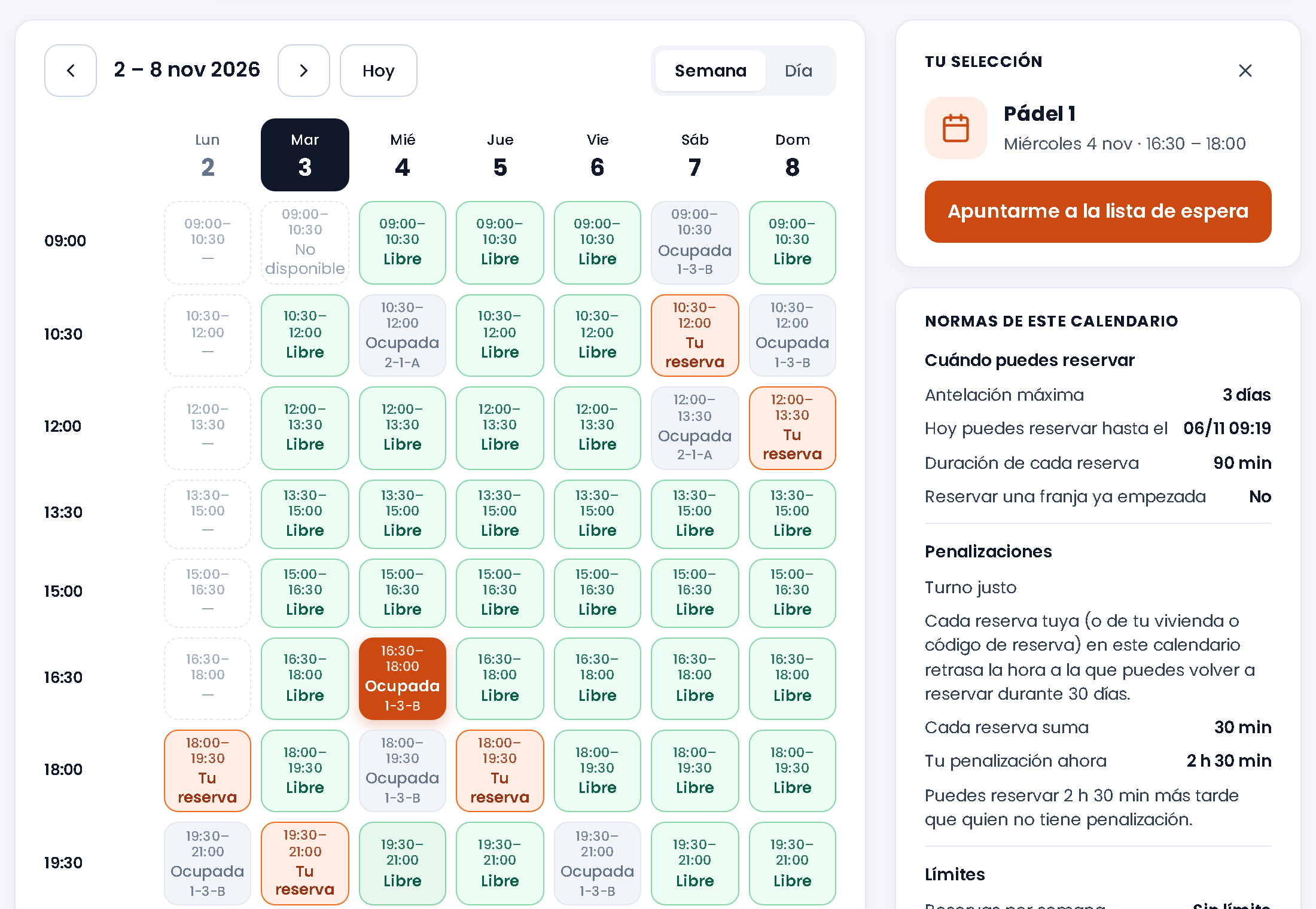
2. The user joins the waitlist
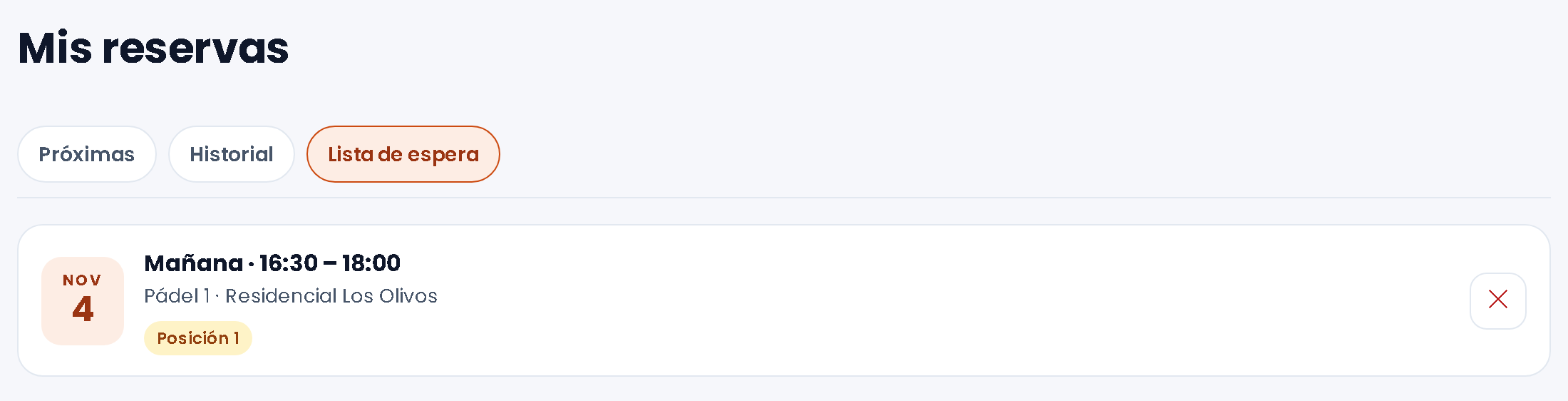
After confirming, the user is registered in the queue with their position ("You are first on the list", "You are number 2 on the list"). They can check their active waiting lists at any time in My bookings › Waiting list (in the app, Bookings › Waiting).
3. A slot becomes available
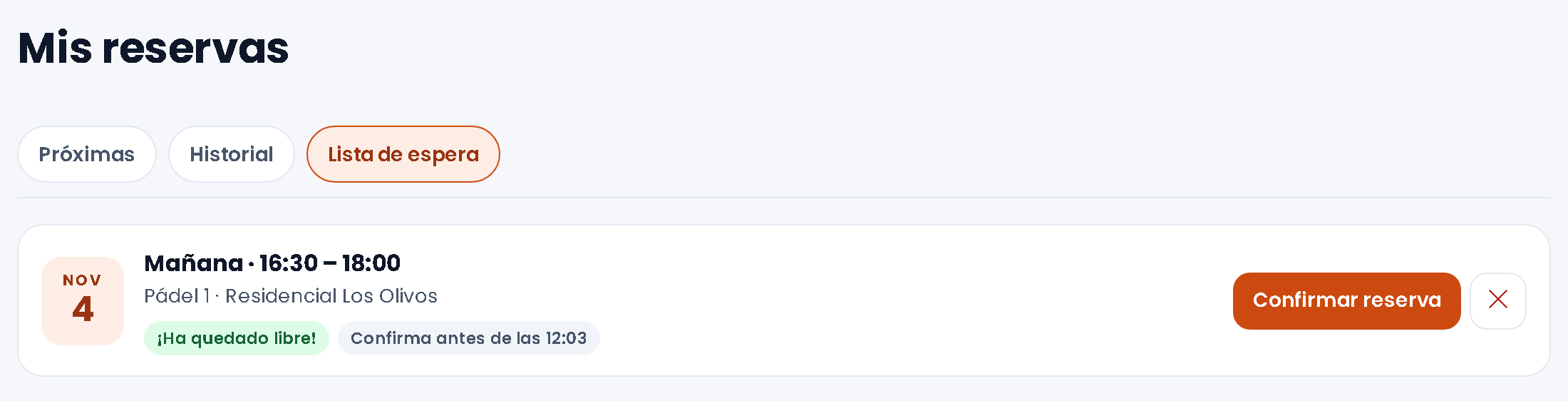
When someone cancels their booking on a time slot with an active waiting list, the system automatically notifies the first user in the queue in their Apoing notices, by email (unless they have turned it off in their notification preferences) and, if they use the app, with a phone notification. The email includes the available slot details, the time they have to confirm, and a direct link to confirm the booking in one click.
4. The user confirms (or does not confirm)
The notified user can confirm the booking in two ways:
- By clicking the link in the email, which takes them directly to the confirmation page.
- By going to My bookings › Waiting list (in the app, Bookings › Waiting) and tapping Confirm booking. The app notice takes you straight there.
If they do not confirm before the time limit expires, their turn lapses (they leave the list and get a notice) and the system moves on to the next user in the queue.
5. The booking is confirmed
Once confirmed, the user holds a firm booking just like any other. The remaining users in the queue stay in line in case of a further cancellation.
"Let me know" or "Book it for me"
If the administrator allows it on that calendar, when you join you choose what we do when the slot becomes free:
- Let me know: the usual. We notify you by email, in your notices and on your phone, and you confirm the booking within the time limit.
- Book it for me: as soon as it frees up, the booking is made in your name and we tell you it is yours. No need to keep an eye on it or confirm anything.
When you choose "Book it for me" we ask one more thing: if you already had another booking that day in the community and both were not allowed, should we cancel it to make this one? If you say yes, we cancel the one closest to that time and make the new one; if you say no, we notify you as usual and you decide.
If a limit prevents us from booking for you (maximum bookings, credits, the slot was taken just before…), you get the usual notification with the reason and the button to confirm yourself.
You can switch modes whenever you like from My bookings › Waiting list (in the app, Bookings › Waiting): each entry has an icon button (bell or wand) to "Switch to book it for me" or "Switch to notify me"; entries in "Book it for me" mode carry the Booked automatically tag. If you switch to "Book it for me" while the slot is already free and waiting for your confirmation, it is booked immediately.
Slot lock period
While there is someone on the waiting list of a time slot that has become free, that slot is locked for bookings by anyone not in the queue. This guarantees the notified user has priority to confirm. If the time expires without confirmation, the next person in the queue is notified; the slot is free for everyone again once nobody is left waiting.
Configuration for administrators
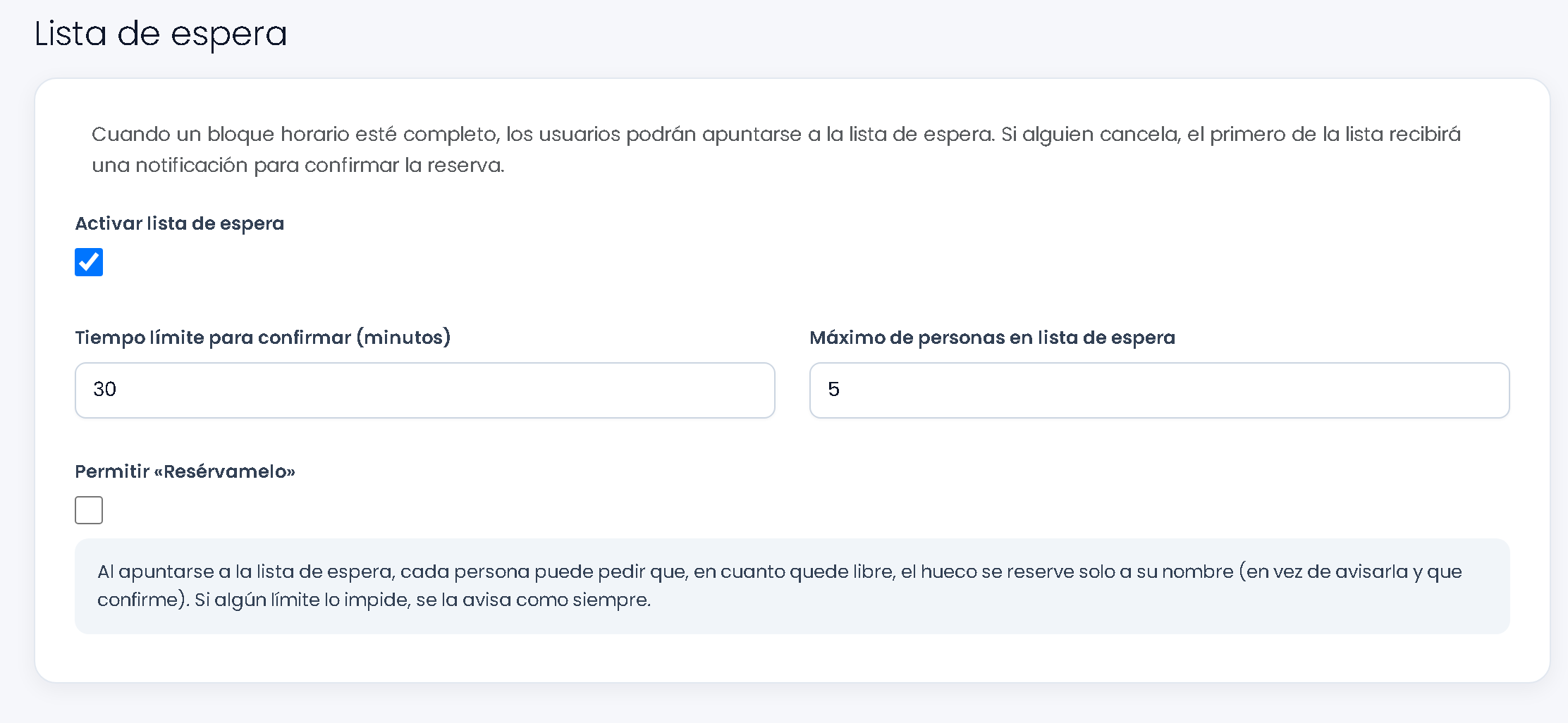
The waiting list is configured per calendar, from each court or facility's edit screen. On the web, go to Management panel › Manage calendars, edit the calendar and scroll down to the Waiting list section. In the app it is in More › Manage communities › Calendars, inside each calendar (there the fields are called Minutes to confirm when notified and Maximum people waiting).
In a business with professionals it works differently: there is no list per time, but an appointment waiting list. It takes two switches: first the business one, in Manage › Services, and then each professional's, in their calendar. The first time you turn on the business one, everyone is included, and you can remove anyone you like. While the business one is off, a professional's cannot be turned on. Customers see it in Book once they choose the service.
Configuration fields
- Enable waiting list: Toggles the feature on or off for this calendar. When disabled, taken slots can't be tapped. This option is not available for calendars with capacity control (aforo).
- Time limit to confirm (minutes): The maximum time the notified user has to confirm their booking before the system moves on to the next person. The default is 30 minutes. You can adjust this to suit your needs — for example, 60 minutes for late-night slots when users may not be immediately available.
- Allow "Book it for me": When ticked, people joining can ask to have the slot booked for them automatically as soon as it frees up, instead of being notified and confirming. Off by default: turn it on if there is a lot of competition for times in your community and you prefer the first in the queue not to lose the slot for not seeing the notice in time. If a limit prevents the automatic booking, the person gets the usual notification.
- Maximum people on the waitlist: The maximum number of users who can wait simultaneously for the same time slot. Once this limit is reached, no further join requests are accepted. The default is 5.
How users interact with the waitlist
Joining a waiting list
From the booking calendar, tap on the desired time slot. If the slot is taken and the calendar has the waiting list enabled, the Join the waiting list button will appear (in the app, Join list). In calendars with several blocks in a row, you first see until when the booking runs and choose how many blocks you want. Tapping it registers you in the queue and shows you your position.
Checking your active waiting lists
You can see all your active waiting lists in My bookings → Waiting list (in the app, Bookings → Waiting). There you will see:
- The calendar and time slot you are waiting for.
- Your current position in the queue (Position 2).
- If the slot has become free for you: It is free now!, with the deadline (Confirm before…) and the Confirm booking button.
Confirming from the email
When a slot becomes available for you, you will receive an email with a direct confirmation link. Clicking it opens a page that confirms the booking straight away, even if you are not signed in: the link is personal, so don't share it.
Leaving a waiting list
If you no longer want the slot, you can leave the list at any time from My bookings → Waiting list by tapping the X ("Leave the list"). Your position will be released and the rest of the queue will move up.
What happens if I don't confirm in time?
If you receive the notification but do not confirm before the time limit expires, your turn lapses: you leave the waiting list and we let you know the option has expired. The system automatically moves on to the next user. If you still want that time, join again (you'll go to the end of the queue). To avoid losing your turn for not seeing it in time, use "Book it for me" if the calendar allows it.
Frequently asked questions
- Can I be on the waiting list and also have another booking at the same time? You can join. When the slot frees up, the calendar's rules apply on confirming as with any booking; if you're not interested, let the time expire and the system will move on to the next person.
- Will I receive an email when I join? No: when you join you see it on screen and in My bookings › Waiting list. The email arrives when a slot opens and it is your turn, with the time you have to confirm and the direct confirmation link.
- Does the confirmation link work without being logged in? Yes. The link is personal and confirms the booking even if you are not signed in.
- What about calendars with approval? There, if a slot is waiting for approval you can ask for it too and you join the queue of requests in order. See bookings with approval.
- Can I join multiple waiting lists at the same time? Yes, you can be waiting for different time slots or calendars simultaneously.
- Can the administrator see who is on the waitlist? Yes, in Management panel › Booking list: bookings with people waiting carry the N waiting tag (and there is a With waiting list filter). In the booking's details, See waiting list shows each person's position, name, email and code, and whether they have been notified.