Automatic rules: fair turn, late cancellations, no-shows, reminders and maintenance
Automatic rules apply on their own when someone books or cancels: the administrator sets them up once and Apoing does the rest. They are in the community's Management panel, Reservations section, Automatic rules, and in the app in Manage › Bookings › Automatic rules (administrators only).
Each rule says what it does and what it applies to: the whole community, one or more categories (for example, Padel) or specific calendars. You can pause them without losing their settings and delete them when they are no longer needed.
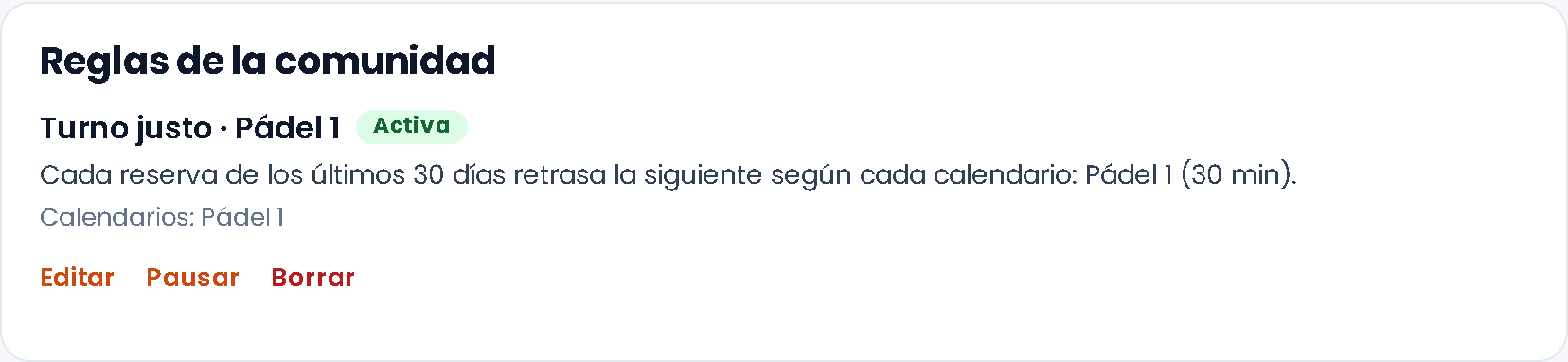
The rules
- Fair turn: whoever has booked most lately can book a little later than the rest. It is the former minutes penalty. How it works.
Example: padel opens bookings 72 hours in advance and each booking delays 30 minutes. Someone who has not booked in the last 30 days can book Saturday's 10:00 court from Wednesday at 10:00. Ana, who has booked that court twice in the last 30 days, can do it 1 hour later (2 × 30 min), on Wednesday at 11:00. That way the most wanted slots don't always go to the same people.
- Late cancellation: if someone cancels with less notice than you set, some days without booking. How it works.
Example: with 24 hours, once and 7 days: Luis has a court on Thursday at 19:00 and cancels it that same Thursday at 10:00, 9 hours in advance. From then on he cannot book for 7 days and gets an email explaining it. Had he cancelled on Wednesday at 18:00, nothing would happen.
- No-show: after several bookings nobody turns up to (you mark them with "No-show"), some days without booking. How it works.
Example: with 2 bookings in 30 days and 7 days: on Monday you mark “No-show” on Marta's booking and again on Friday. With the second one, Marta cannot book for 7 days and gets an email. If a mark was a mistake, you remove it and the count goes down.
With access control: if you have access control turned on and working (community API key, door identifier in Edit calendar › Integration API and the door reader connected to Apoing), you can tick “Mark “No-show” automatically”: when the holder requested the door code but did not open the door, “No-show” is marked for you every hour, 15 minutes after the booking ends. If they never requested the code nothing is marked (they may have walked in through an open door). The history shows it as “automatic: the door was not opened” and you can remove the mark just like yours.
- Reminder: when each person is reminded before their booking.
- Maintenance: close one or more calendars for some hours or days, cancelling the bookings in that time and notifying their owners.
- Peak hours: the most wanted hours, shared out among everyone: their own caps, length and opening. How it works.
What is free and what is Pro
Fair turn, Reminder and Maintenance are always free. Late cancellation, No-show and Peak hours belong to Apoing Pro, free for now for every community. When a community does not have Pro, those rules are paused (the list shows “Paused · needs Pro”): they do not apply, no new sanctions are issued and existing ones stop blocking bookings. They are not deleted: they work again once the community has Pro. Meanwhile they can be edited or deleted, but not turned on.
Reminder
Without this rule, Apoing sends no booking reminder. If you want people to be reminded of their bookings, add this rule.
With the rule you choose how many hours before it is sent (from 1 to 72). For example, with 12 hours, someone playing at 9:00 gets the reminder the night before and the message says "tomorrow". It goes out in the community's time, by email and as a phone notification if the person has the app. Each person gets it according to the notifications they have turned on in their profile.
Maintenance
- Tap Maintenance under "Add a rule".
- Choose the calendars (or the whole category), from and to when, and the reason (for example, "court repainting").
- When you save, Apoing asks you to confirm: it cancels the bookings in that time and emails each owner with the reason.
Example: from Monday 8:00 to Wednesday 20:00, reason “court repainting”. The bookings in those days are cancelled and each owner gets a notice with the reason. Until Wednesday at 20:00 those slots show as unavailable.
While the closure lasts nobody can book those calendars: the slots show as unavailable and Rules for this calendar shows "Closed for maintenance" with the dates and the reason. When the end date passes, the rule shows as Finished and you can delete it.
If you only want to block a single slot without cancelling anything, the slot blocking in Management panel › Special reservations still works.
Peak hours
Useful when the most wanted hours (weekday evenings, Saturday mornings…) always go to the same people. The rule sets a peak-hour band with its own conditions:
- Tap Peak hours under “Add a rule” and choose what it applies to (a category, several calendars or the whole community).
- Choose which hours are peak hours:
- Automatic, by usage: Apoing looks at the heat map of the last 90 days (the one in Statistics and report › Usage) and takes the slots with an average occupancy of the percentage you choose or more (60, 70, 80 or 90 %). They are recalculated every Monday, so the band moves on its own when usage changes (in summer, for example). At least 20 bookings in those 90 days are needed; until then the rule does not limit anything.
- By hand: you set the days and hours (you can add several bands). With Use this band you copy the one the heat map proposes and adjust it.
- Set what changes in peak hours (whatever you leave empty is not limited):
- Advance: those hours can be booked at most N hours ahead (other hours, as usual).
- Maximum length of a booking in peak hours.
- Caps per household or member: peak-hour bookings a week and a month, or peak hours a month.
Example: padel and tennis, Monday to Friday from 18:00 to 21:00, with 2 peak-hour bookings a week and 90 minutes at most. Luis has already played padel on Monday at 19:00 and tennis on Wednesday at 18:00: that week he cannot book another evening, but he can on Saturday morning or Thursday at 16:00.
- The most restrictive always applies: the rule adds to the category's booking rules; it never loosens a general limit.
- Shared cap: caps are counted together across all the rule's calendars. If you want a cap per calendar, create one rule per calendar.
- Booking managers are not limited, and existing bookings are not touched.
- People booking see the band and its limits in Rules of this calendar and, if they go over, the exact reason (“You already have 2 peak-hour bookings this week…”).
Automatic “No-show” with the door
In the No-show rule you can tick “Mark “No-show” automatically if the door code was requested but the door was not opened”. The box only appears if the community has a calendar with a door connected to Apoing (access control: community API key, door identifier on the calendar and the reader connected).
- When it is marked: if the person requested the code or QR to open the door for their booking and the door was never opened with it, a “No-show” is recorded when the booking ends, just as if you had marked it.
- When it is not marked: if they never requested the code (they may have come in with the door already open, or the community opens it another way), for cancelled bookings and on calendars without a door.
- When it is checked: every hour, at least 15 minutes after the booking ends. It only counts bookings that end after you tick the box.
- What happens next: it counts for the rule like any other “No-show”; when it reaches the number of times you set, the person cannot book for the rule’s days and gets an email. In the Sanctions history it shows as “automatic: the door was not opened”.
- If it was a mistake (for example, the reader failed), remove the mark or lift the sanction as usual.
Example: Ana books the court from 18:00 to 19:00 and at 17:55 requests the code in the app, but in the end does not go. Around 19:15 a “No-show” is recorded. If the rule says 2 times in 30 days and this is the second, Ana cannot book for the rule’s days.
Who is sanctioned
In Automatic rules (website and app) the administrator has two lists:
- Active sanctions: who cannot book right now, with their booking code, under which rule, on which calendars and until when. From here you can lift the sanction and they can book again straight away.
- Sanctions history: late cancellations, "No-show" marks and sanctions from the last 12 months, including finished and lifted ones (and who lifted them). You can search by name, email or booking code.
What people booking see
Rules for this calendar (website and app) shows the rules that affect them: the Penalties section with the fair turn, late cancellation, no-shows and, if they have one, their sanction; and under Notices, maintenance closures.