Bookings with players for clubs — Who plays, rest between turns and walk-in bookings
Mainly for: Club
In many clubs it is not enough to know who books: you need to know who plays. With bookings with players, whoever books a court or a table says who they are playing with, their partner gets a notice and the club always knows who is using each slot. You can also stop anyone playing two turns in a row, leave quiet times out of the limits and tell walk-in bookings apart from bookings made in advance.
Everything is turned on per category (for example, “Billiards” or “Padel”) in Booking rules. If you don't turn it on, nothing changes.
1. Set up the calendars
- In the calendar, under What is it?, choose Game table for billiards, table tennis, chess or board games, or Sports court for padel, tennis…
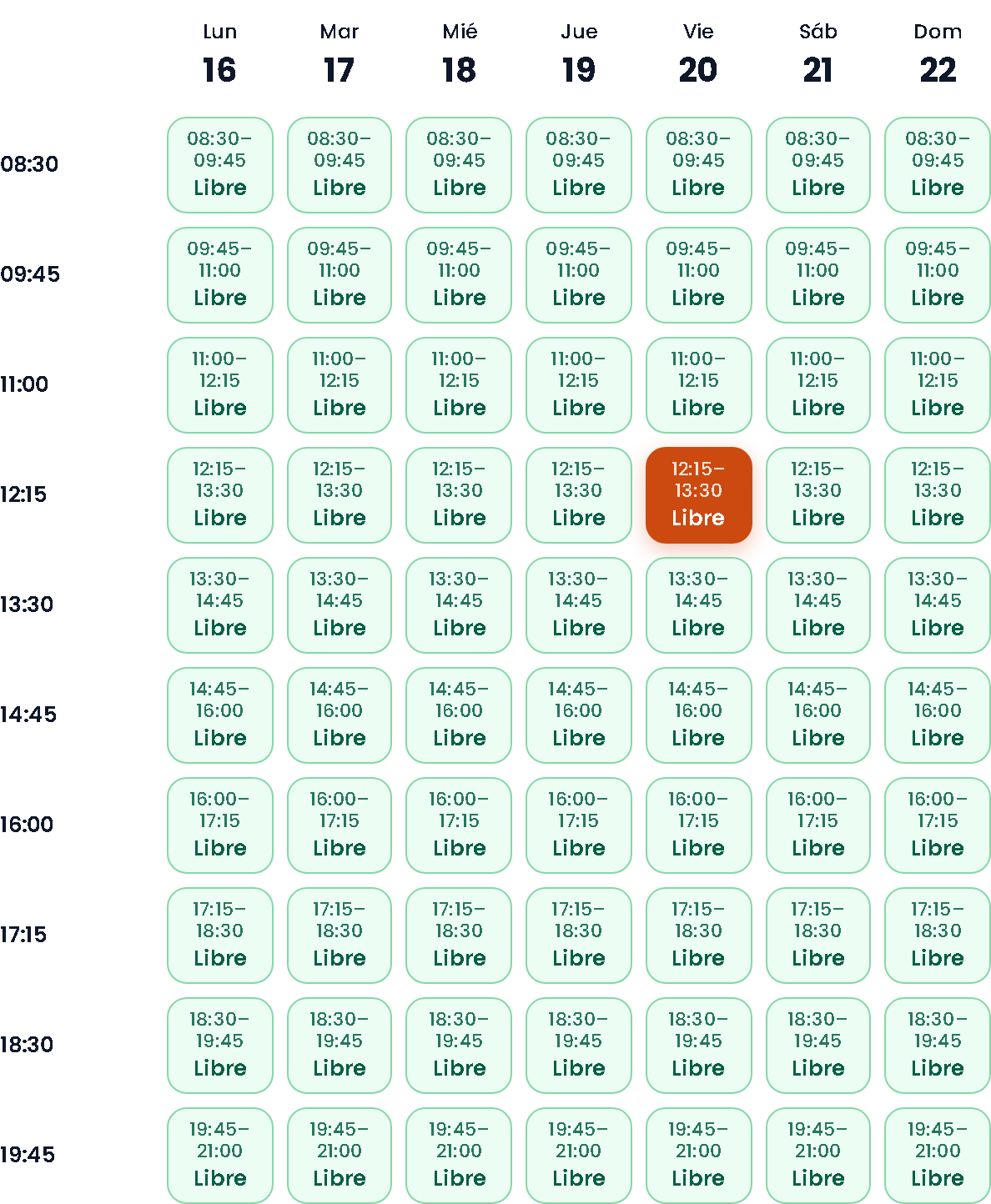
- If turns are not in half-hour steps (for example, 75-minute turns from 08:30 to 21:00), use the advanced schedule and create each turn with its start and end time.
- If you tick Allows matches in the tables' category, members get the Games menu to find people to play with (see Games on tables).
2. Players per booking
In the category's Booking rules, choose Players per booking (for example, 2). The number includes the person booking. This option appears in communities of the Club or association type.
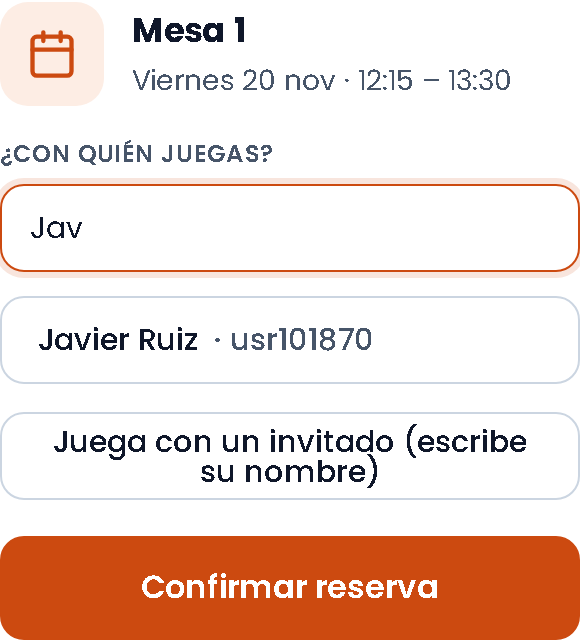
- When booking, “Who are you playing with?” appears: partners are found by name or member number among the community's members. The booking can't be made without it.
- If you tick Guests can play, the name of a person without an account can also be written.
- Partners don't have to accept: they are added, get a notice and see the booking in My bookings.
- The calendar shows who plays in each slot, for example “John · Peter”.
- If a partner can't make it, they tap Leave the booking. The booking becomes incomplete and we let the person who made it know, so they can tap Add player and choose someone else.
- If the booking is cancelled, the partners are notified too.
- When the administrator books for a member, they choose the partners as well.
3. Limits apply to every player
The category's limits (bookings per week, per day, upcoming at once…) apply to every player, not only to the person booking: a booking you play in as a partner counts the same as one of your own. If a partner has already reached their limit, the message says so with their name.
4. Rest between turns
With Rest between turns, nobody in the booking (the person booking or their partners) can play the turn before or after, on any court or table of the category, even if they switch tables or someone else books. For example: “Peter is already playing from 17:15 to 18:30 on Table 1: nobody can play two turns in a row”. It also applies when the administrator books.
5. Slots that don't count towards the limits
In Slots that don't count towards the limits, write the start times with little demand, separated by commas (for example 08:30, 14:45, 19:45). Bookings at those times don't add up towards the limits and can be made even when the maximum has been reached. The rest rule still applies.
6. Extra bookings for today, above the limit
Booking limits (upcoming at once, per day and per week) stop people hoarding. But on the day itself, if tables are free, it's better they get used. With Extra bookings for today, above the limit, someone who has already reached one of those limits can still book a turn for today, if it is free:
- Extra over what: above the limits of upcoming bookings at once, per day and per week.
- When: only for turns on the same day the booking is made. Not for tomorrow or any other day.
- How many: as many as you choose per person per day, 1 to 5 (one is usual).
- The rest between turns still applies.
Example: with “Upcoming bookings at once: 1” and 1 extra a day. Ana has Thursday booked, so she is at her limit. On Tuesday morning she sees the 18:30 table free that Tuesday and can book it. A second one that Tuesday, no. Wednesday, no either, because it isn't today.
7. Take it now: walk-in bookings
Turn on Allow taking a free slot on the spot (in Booking rules). Someone who arrives and finds a free table can book it even if the turn has started: the button says Take it now.
Apoing marks each booking as walk-in (made once the turn has started or at most 15 minutes before; you can change the margin) or in advance. You can see it in the administrator's calendar, in My bookings and in the bookings download.
Taking an empty table at the last moment doesn't use up the allowance
There are two ways to use a table:
- Booking it in advance: keeping it for later or another day. That's what limits and the rest between turns share out, so nobody hoards.
- Taking it at the last moment: the table is empty and the turn starts now. If nobody uses it, it's wasted, and nobody loses out if someone does.
If you use limits or a rest between turns and don't want tables left empty because of them, turn on Taking an empty slot at the last moment doesn't use up the allowance (below the previous option). Taking it at the last moment:
- doesn't count towards the booking limits (upcoming at once, per day, per week…);
- doesn't count for the rest between turns, neither this one nor earlier ones;
- doesn't use up the extra booking of the day.
When does “the last moment” start? You choose it in minutes before the turn starts (15 by default; with 0, only once the turn has started). For example, with 15, the 17:15 turn taken from 17:00 doesn't use up the allowance; taken at 16:50 or the day before, it is a normal booking, with all the rules. This margin doesn't change when people can book: that's set by the maximum and minimum notice. If you set a minimum notice, nobody can take a turn that close to its start and this option has no effect.
Example: with a rest between turns, two members have the table booked from 16:00 to 17:15 and couldn't also book the 17:15 turn. When they finish, the table is still empty: they tap Take it now and keep playing from 17:15 to 18:30. It doesn't count as a second turn in a row or use up their allowance, and it is marked as walk-in in the calendar and statistics.
If you don't use limits or a rest between turns, you don't need this option.
This option is available for court and table categories in any type of community, not only clubs.
Games on tables: find people to play with
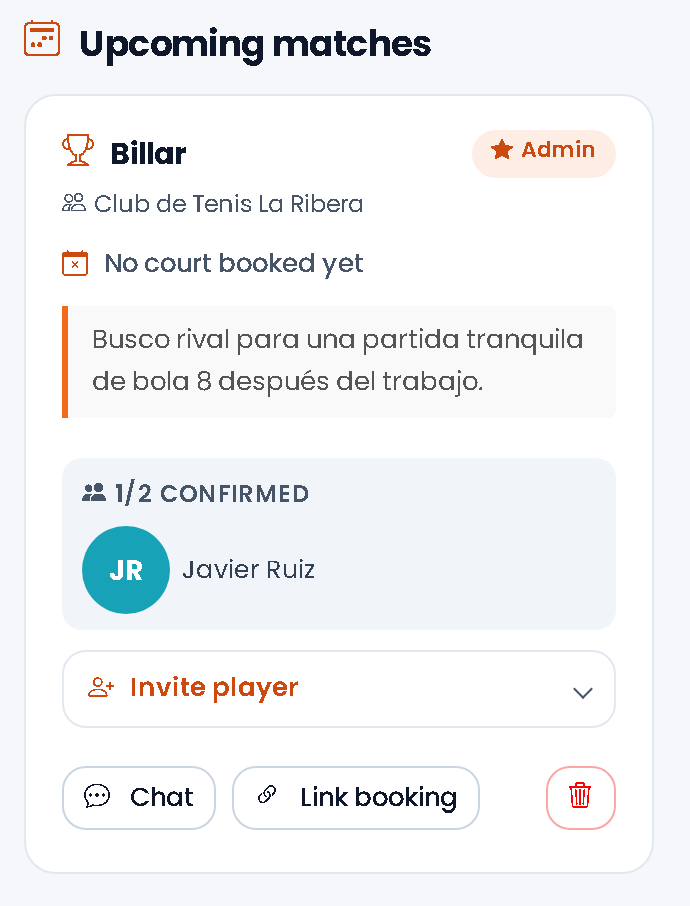
Besides booking with players, on tables you can organise games: someone creates a game and other members join. It works like matches on courts, but separately.
- How to turn it on: Game table calendars in a category with Allows matches (in Booking rules).
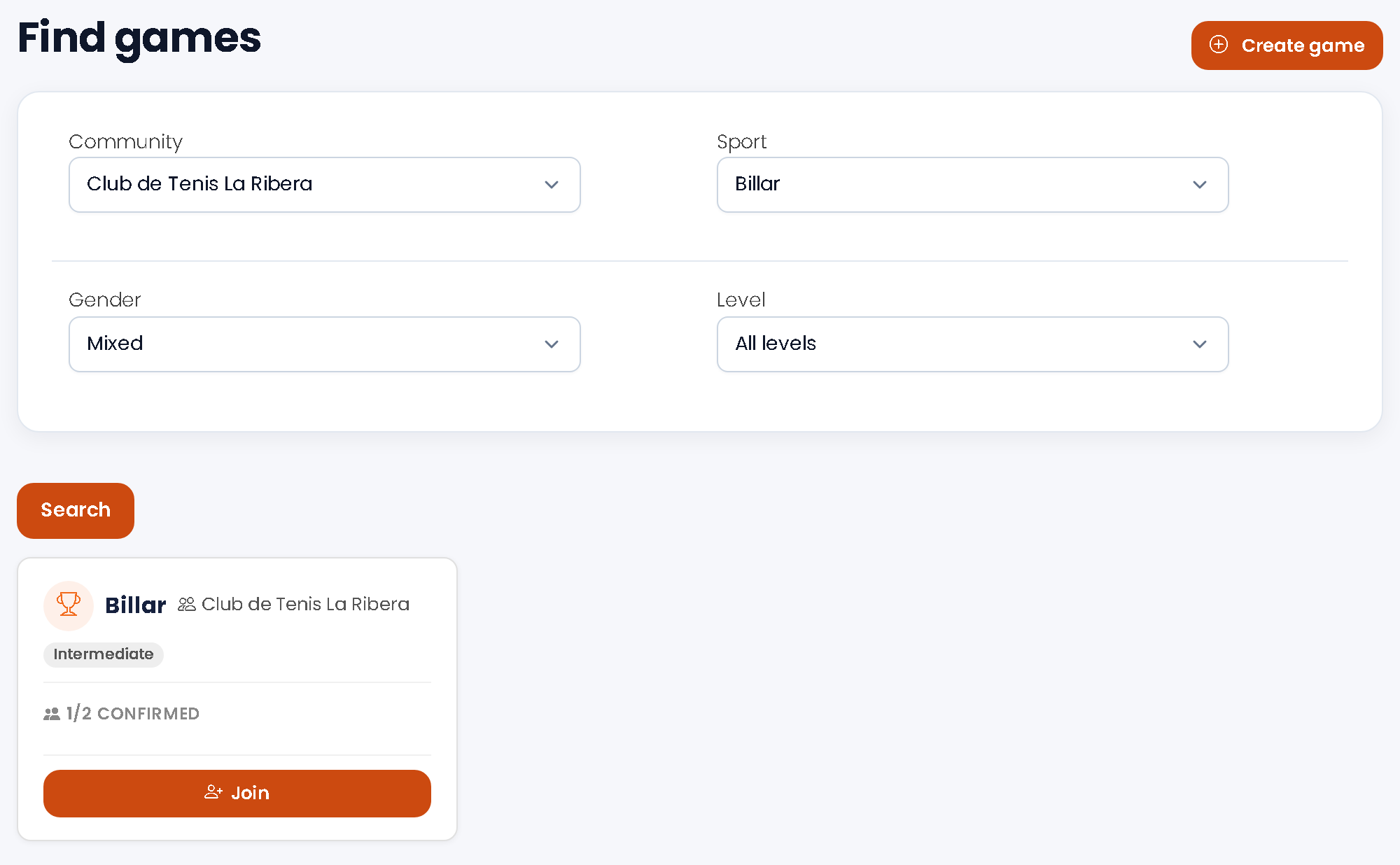
- On the website the Games menu appears with My games, Find games and Create game. If the community also has courts with matches, you will see both menus separately: Matches and Games.
- In the app, under More, the section is called Games (or Play if you have courts and tables; inside you choose between Matches and Games).
- Create game: choose the community, the game, the number of players (2 to 4) and the level, and you can invite by email. There are no free games and no gender option.
- Each game has its chat, like matches.
- Games have no tournaments or ranking.
8. Usage data
In the community panel, Bookings list → Download includes, for these categories, the columns Player 1, Player 2… and Type (walk-in or in advance), to keep usage statistics per table, time slot and player.
Frequently asked questions
- Can others see who plays? Yes: in these categories the community's members see who plays in each booking. The calendar rules say so.
- Can I search for members of another club? No: the search only shows members of the community you are booking in.
- Can it be used for padel or tennis? Yes, for any category: for example, 4 players per booking for padel.