Notifications: choose how each one reaches you — Email, push, both or neither
You decide how each kind of Apoing notification reaches you: by email, on your phone (push), both or neither. Nothing you turn off is lost: it still appears in Notices on the website and in the app (Alerts in the app bar), so you see it when you sign in.
Where to change it
- On the website: open your Profile and scroll down to Notifications.
- In the app: go to More › View my profile and look for Notifications.
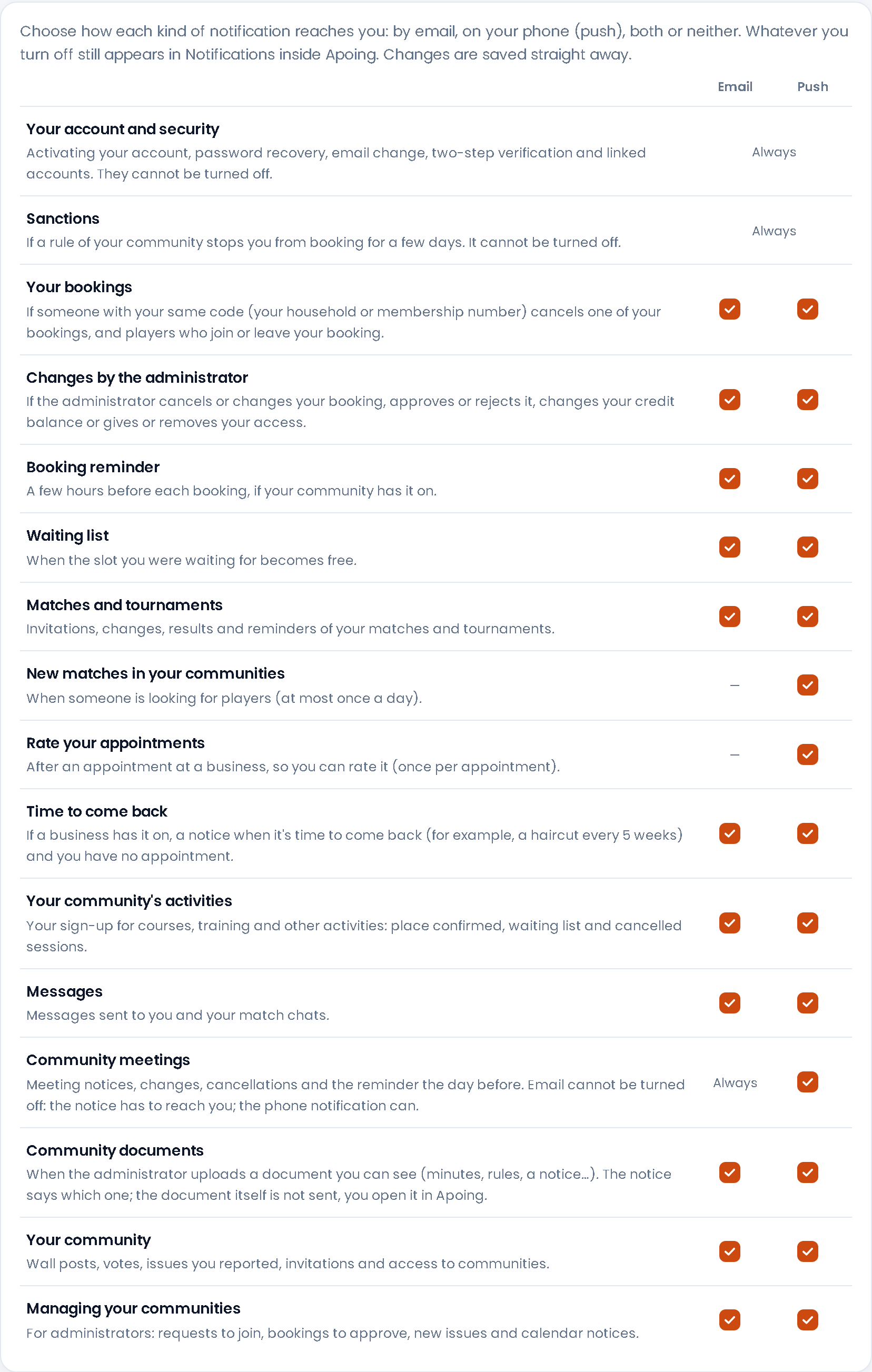
Each kind of notification has two tick boxes, Email and Push. Changes are saved straight away, without pressing any button.
Kinds of notification
- Your account and security (always): activating your account, password recovery, email change, two-step verification and linked accounts.
- Sanctions (always): if a rule of your community stops you from booking for a few days.
- Your bookings: if someone with your same code (your household or membership number) cancels one of your bookings, and players who join or leave your booking.
- Changes by the administrator: if the administrator cancels or changes your booking, approves or rejects it, changes your credit balance or gives or removes your access to the community.
- Booking receipt (email only): an email when you book, as proof that the booking is made. You only get it if you turn it on. Bookings that need approval get it when they are approved.
- Booking reminder: a few hours before each booking, if your community has it on (it is an automatic rule set by the administrator). It is not the receipt: the receipt arrives when you book, and the reminder before the booking.
- Waiting list: when the slot you were waiting for becomes free.
- Matches and tournaments: invitations, changes, results and reminders of your matches and tournaments.
- New matches in your communities (push only): when someone is looking for players; at most once a day.
- Rate your appointments (push only): after an appointment at a business, so you can rate it (once per appointment).
- Time to come back: if a business has it on, a notice when it is time to come back (for example, a haircut every 5 weeks) and you have no appointment.
- Your community's activities: your sign-up for courses, training and other activities: place confirmed, waiting list and cancelled sessions.
- Messages: messages sent to you and your match chats.
- Community meetings (email always): meeting notices, changes, cancellations and the reminder the day before. Email cannot be turned off because the notice has to reach you; the phone notification can. More in Community meetings.
- Community documents: when the administrator uploads a document you can see (minutes, rules, a notice…). The notice says which one; the document itself is not sent, you open it in Apoing.
- Your community: wall posts, votes, issues you reported, invitations and access to communities.
- Managing your communities: only administrators and people with a role (caretaker, board…) see it: requests to join, bookings to approve, new issues and calendar notices.
Communications from Apoing
Below the kinds of notification you'll find the box "I'd like to receive communications from Apoing by email". It's optional, stays off unless you tick it, and doesn't change any notification about your bookings or communities. It also appears when you create your account. Every one of these emails has a link to unsubscribe, and the date you ticked or unticked it is kept in your profile, under what you have accepted.
Good to know
- At first everything is on, except the booking receipt, which you turn on if you want it. If you had turned off "Receive emails" before, we respect it: you still won't get those emails (nor the booking reminder push) until you turn them on here.
- Notifications about Your account and security and Sanctions cannot be turned off: you need them to get into your account and to know why you cannot book.
- For push notifications to arrive, notifications must also be on for that device: in the app, "Push notifications" in the same part of the profile; on the website, the "Enable push notifications on this device" button in your profile. The phone or browser must also allow notifications.
- If you turn off both email and push for a kind, the notification is still in Notices: you miss nothing, we just stop bothering you outside Apoing.
The Notices screen
Everything Apoing sends you is in Notices (on the website, the bell next to the menu logo; on a phone, at the bottom; Alerts in the app's bottom bar). It has two tabs, each with its unread counter: Notices and Messages.
- In Notices each notice is read right in the list, grouped by day (Yesterday, This week, Earlier…), with its action button when it has one (for example, See the meeting and reply). They are marked as read when you see them.
- To delete one, swipe it sideways. With Select you tick several (or Select all) and press Delete selected.
- Deleted notices keeps the ones you deleted in the last 90 days, with Restore in case you made a mistake.
Messages and conversations
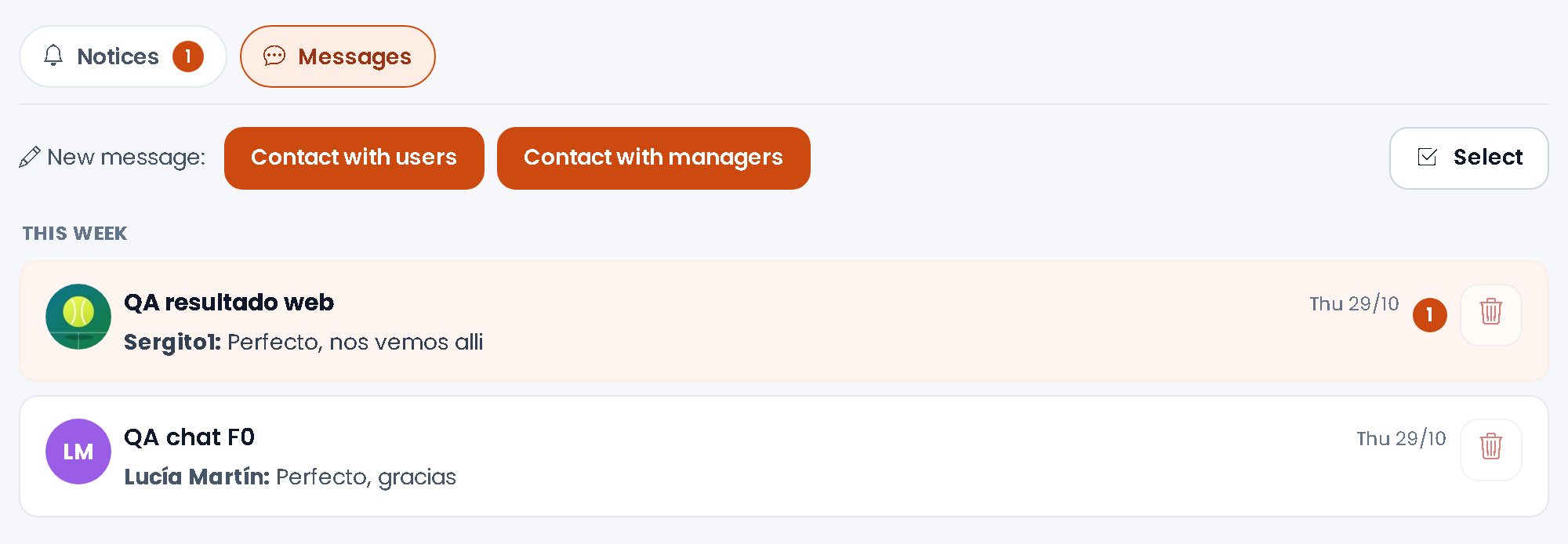
The Messages tab holds your conversations: with the administrators of your communities, with other users and your match chats (with the match icon). Each one shows the last message and who wrote it.
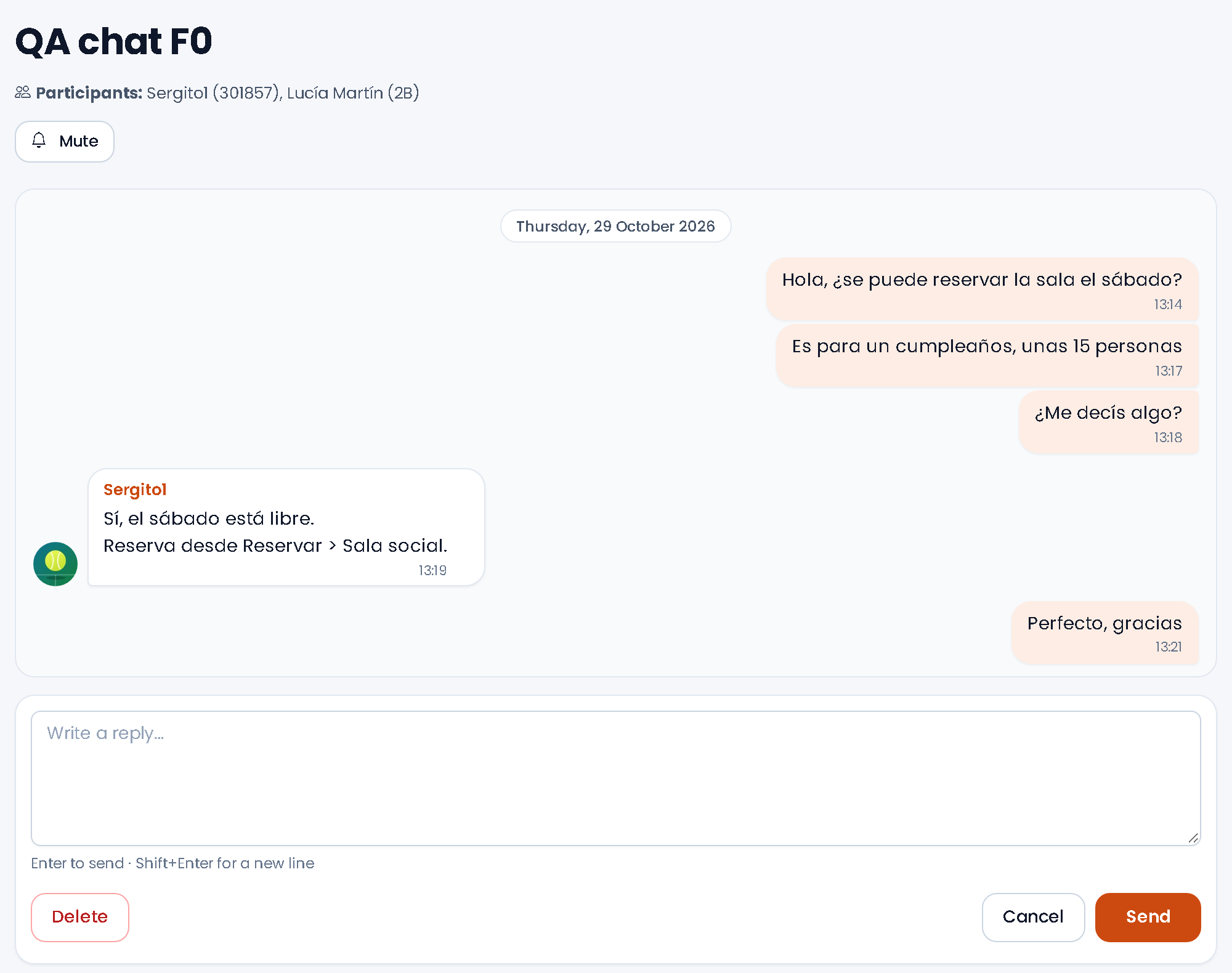
- Reply: open the conversation, type in the box at the bottom and press Enter to send (Shift+Enter for a new line). The conversation updates by itself while it is open.
- Start a new one (website): in the Messages tab, Contact with managers (or Contact inside the community itself) writes to the administrators of a community and Contact with users to people in your communities (how to choose them, in Send a message).
- Phone notifications: you get "Name: message" and tapping it opens the conversation. If you have several unread messages in the same conversation, at most one every 5 minutes. With Mute (in the app, the bell at the top) you stop getting phone notifications from that conversation; messages still arrive.
- Report or block: on someone else's message, press "⋯" (in the app, long-press the message) to Report message or Block the person who wrote it. Their messages are hidden and you can Unblock them from the hidden message itself.