List of homes: entrances, floors and doors of your residents' community
Mainly for: Residents
The list of homes holds every home in a residents' community (for example, 1-2-A: entrance 1, 2nd floor, door A). With it, each resident chooses their home from the list when joining instead of typing it, so there are no variants («3A», «3 a», «3A bis») and booking limits, credits and votes add up per home. This article explains everything you can do with it.
Where it is
Only communities of type Residents' community have it, and their administrators manage it:
- Web: in the community panel, People block, Homes card («Entrances, floors and doors»).
- App: under Manage › People › Homes.
The app has almost everything; the map, the import and the spreadsheet are only on the web.
The top of the page only shows what is pending: Residents without a home from the list and Home change requests. Below are the steps to create the list and the list itself.
1 · Create the homes
Create the homes has three tabs:
Generate
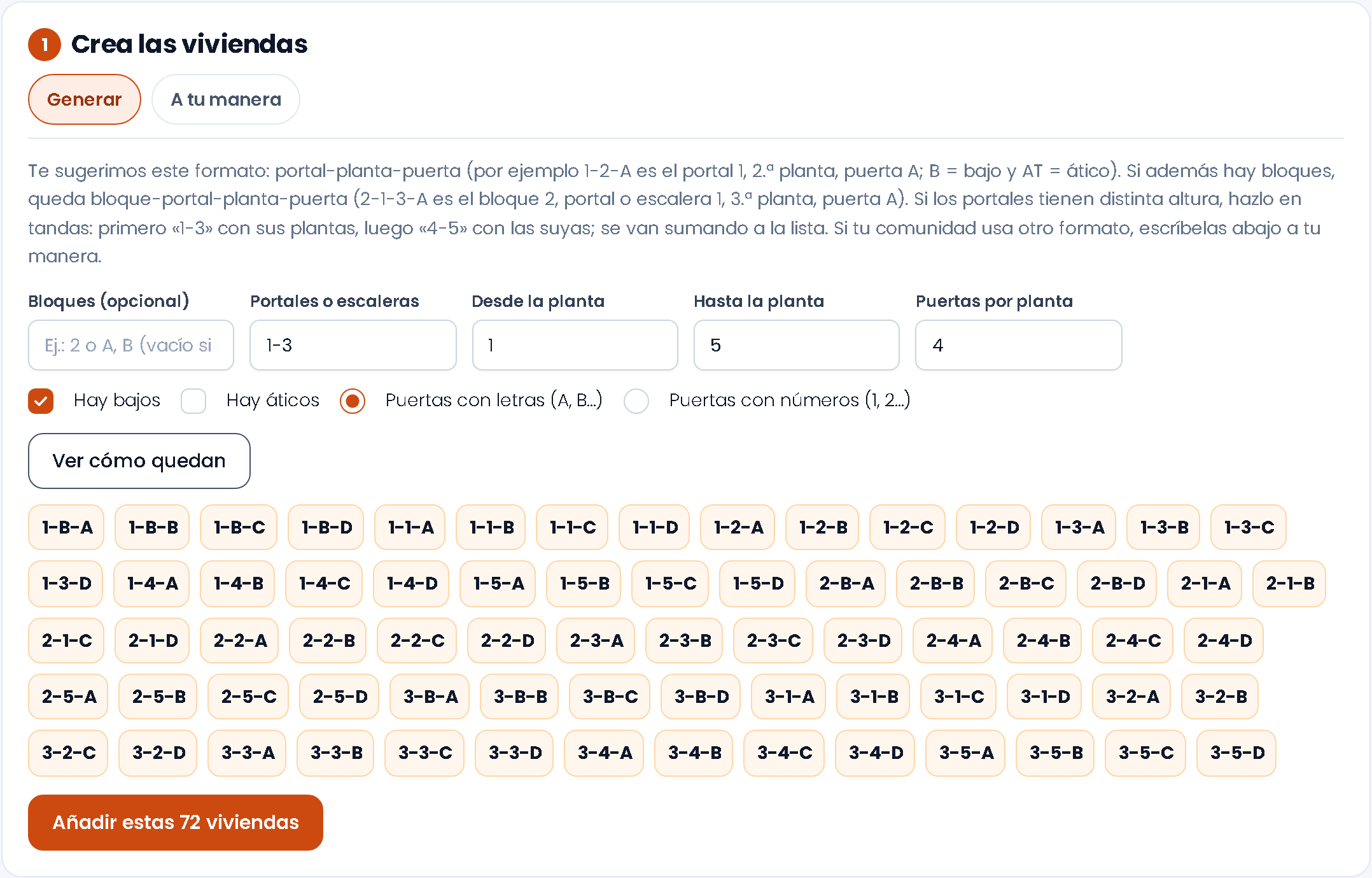
Describe the building and Apoing creates the list:
- Blocks (optional): for example «2» or «A, B». Leave it empty if there are none.
- Entrances or staircases: for example «3», «4-5» or «A, B». Empty if there is only one.
- From floor and To floor.
- Doors per floor, with letters (A, B…) or numbers (1, 2…).
- Ground floor (code B) and Penthouses (code AT).
We suggest the entrance-floor-door format (1-2-A). If you fill in «Blocks», the format becomes block-entrance-floor-door (2-1-3-A: block 2, entrance 1, 3rd floor, door A). That covers 2 to 4 levels. Press Preview to check them and then add them to the list.
If the entrances have different heights, do it in batches: first entrances «1-3» with their floors, then «4-5» with theirs. Each batch adds up on the list.
Your own way
If your community uses another format («1st A», «House 12»…), type one home per line, however you want to call it (you can also paste it from a spreadsheet), and press Add to the list.
From current codes
This tab only appears if your residents already had a code typed by hand. It shows those codes and, if a home appears written in several ways (or with «bis»), marks it as Possibly the same home: choose its name and press Merge into the selected one. That way its booking limits and votes count as a single home. Nothing is merged on its own: you decide. When merging, the residents, linked accounts, invitations, bookings and credits move to the chosen home.
2 · Add each resident's email (spreadsheet)
This is the quickest way to invite the whole community:
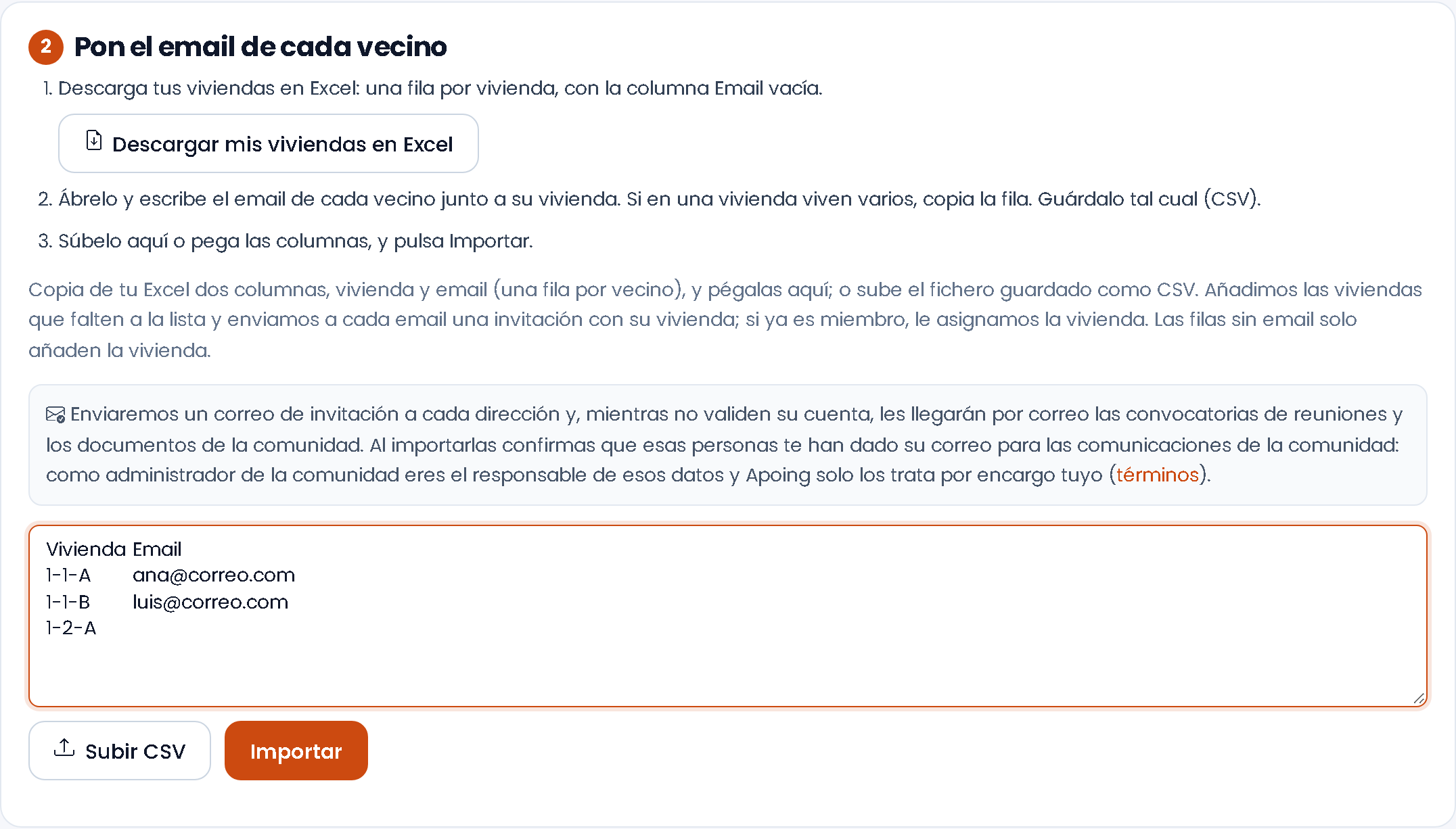
- Press Download my homes as a spreadsheet: one row per home, with an empty Email column.
- Open it and type each resident's email next to their home. If several people live in a home, copy the row. Save it as it is (CSV).
- Upload it with Upload CSV or paste the two columns (home and email) and press Import.
We add any missing homes to the list and send each email an invitation with their home: when they accept it, they join with it already set. If that person is already a member, we assign them the home. Rows without an email only add the home. At the end you'll see how many invitations were sent and whether any failed.
Until they validate their account, those addresses receive the community's meeting notices and documents by email. By importing them you confirm these people gave you their email for the community's communications: as administrator you are responsible for this data and Apoing only processes it on your behalf. More in Bulk import.
Asking for the home when joining
The list is used when the community asks people who join for their home (in Edit community, What do you ask people who join?). If it doesn't yet, List of homes shows a notice and the Ask for the home when joining button to turn it on.
From then on, when joining or accepting an invitation, each resident chooses their home from the list, on the web and in the app. When the list is long (25 homes or more) and has several levels, they choose it step by step: block, entrance, floor and door, with the option to see the full list. You then confirm their request as usual; each request shows the home they chose and, if it isn't on the list, the warning «Not in the list of homes».
Assigning a home to existing members
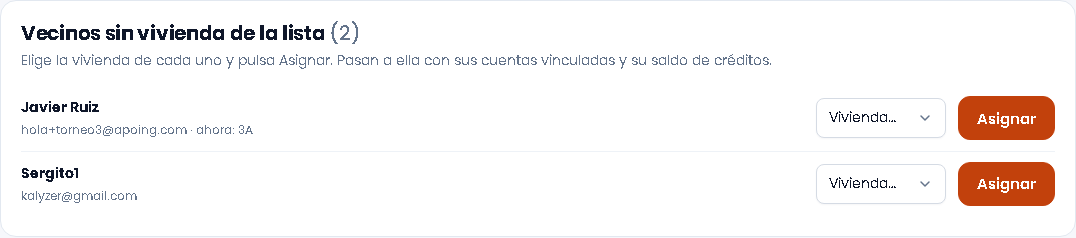
If your community already had residents, in Residents without a home from the list choose each one's home and press Assign. They move to it with their linked accounts; the credit balance stays in the home or goes with the person, depending on your community's option. You can also change it in the resident's card (Users), where the home is chosen from a drop-down.
The list and the map
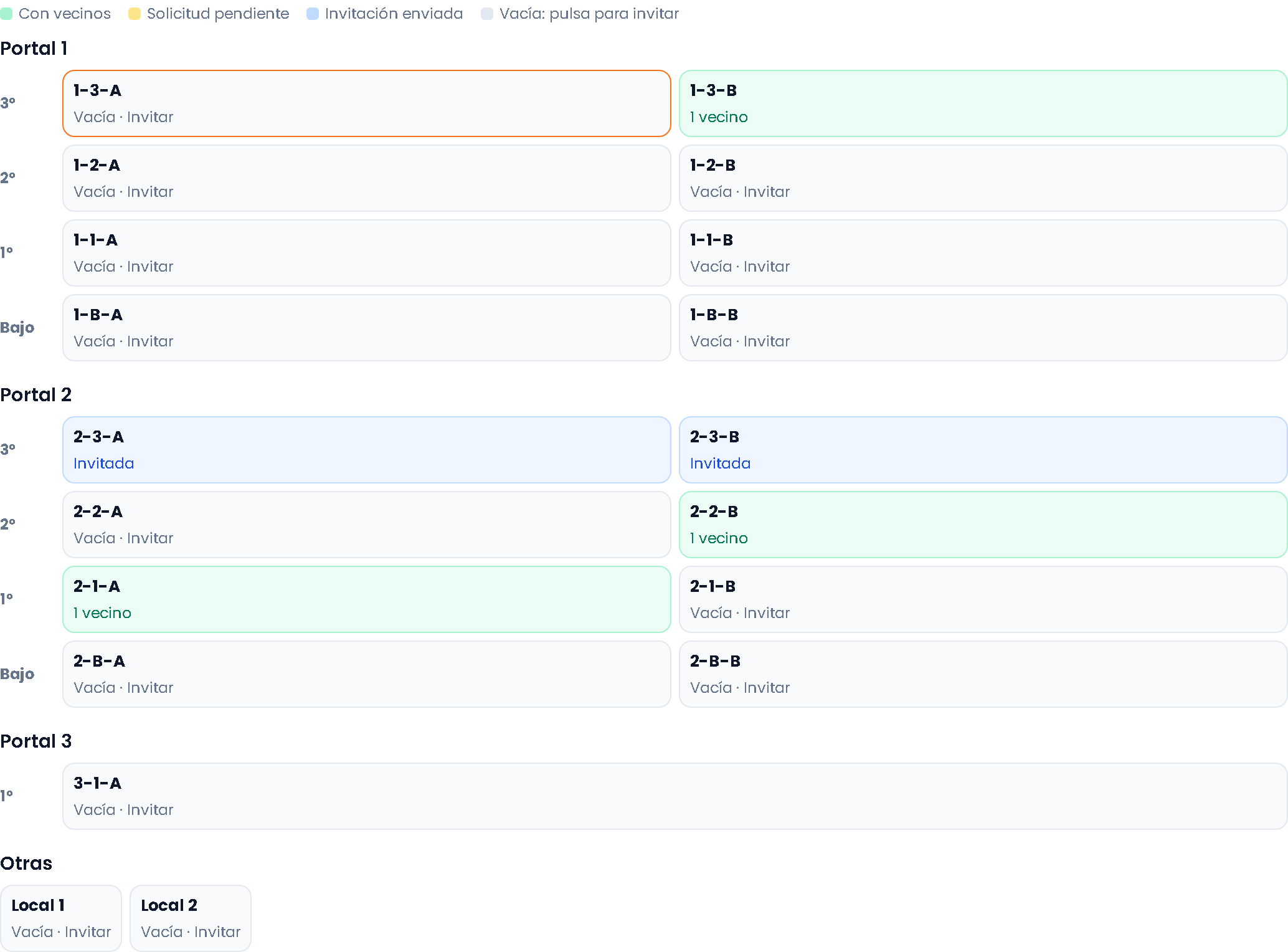
In List of homes each home shows its status: in green, how many residents live there; in yellow, pending requests; in red, residents who have not validated their account; in blue, contact emails. You can filter by All, Nobody registered, Account not validated, Contact email only and With request (only filters with some home are shown), and:
- Tap a home with nobody in it to add the contact email of whoever lives there (Add and invite): they get an invitation with their home and, until they register, receive meeting notices and notices of documents for everyone by email. Tap it again to see or remove that email.
- Map by entrance and floor: each entrance (or «Block X · Entrance Y») with its floors from top to bottom and its doors: with residents, pending request, invitation sent or empty. Tap an empty one to invite. Homes that don't follow the format appear under «Others».
- Download report (spreadsheet): each home with its status (lives here, pending request, invitation sent or empty), the name and email of whoever lives there and, at the end, members without a home or with a home that is not on the list.
- Removing homes: only empty homes can be removed. If the whole list is empty, you can Empty the list and start again.
If you turn on linked accounts in Edit community, you can limit how many accounts share a home (for example, a couple or a family). The page shows the current maximum.
Changing home
A resident who moves within the community (or chose the wrong home) asks for the change themselves:
- Web: in My communities, Change home.
- App: on the community card, menu ⋮ › Change home.
They choose their new home and press Send request. Meanwhile they stay in their current home and can cancel the request. Administrators (and anyone with a role that can manage users) get a notice, and the request appears in Needs your attention, at the top of Homes and in Requests › Home changes, where you approve or reject it. If someone already lives in the new home, we tell you. When you approve it, the resident, their linked accounts and their credit balance move to the new home; bookings already made stay as they are. We notify them either way.
If you'd rather do it yourself, change the home in their card.
Bookings, credits and votes per home
The home code is the booking code of whoever lives there. So:
- Booking limits: the maximums in the booking rules (per day, per week…) are counted per code, so people in the same home share them: if 2 bookings a week are allowed, two people in the same home don't get 4. Sanctions and automatic rules also apply to the home.
- Credits: the balance belongs to the home, and the people living there share it. When someone changes home, it stays there unless the community chooses to let it go with the person (and only if nobody else is left). See Booking credits.
- Polls: can be one vote per home. See Polls.
- Linked accounts: share the home's code. See Linked accounts.
Residents see the home code on bookings, not the name. Only the administration (and anyone with a role that can manage users) can change someone's home. See Roles and permissions.
Frequently asked questions
Can I use the list if my community is not a residents' community?
No: the list of homes is only for residents' communities. In the other types, the community can ask for something else when joining (member, customer or subscriber number…) under What do you ask people who join?.
What happens to bookings when someone changes home?
Bookings already made stay as they are. From the change on, new bookings and limits go with the new home, and its credit balance is used. The previous balance stays in the old home, unless the community has chosen to let it go with the person.
Can I remove a home where someone lives?
No. Only empty homes can be removed. First move its residents to another home.