How to book facilities from your mobile with Apoing
You can book from your phone in two ways: with the Apoing app (the most convenient and recommended way) or straight from your web browser, which works just as it always has. Here's both.
The easiest way: the Apoing App
The Apoing App is now available for Android and iPhone. It's free and offers a faster, smoother and more native experience than the browser, with push notifications so you never miss a booking or a match.
With the app you can:
- Book and cancel from a calendar designed for mobile, in just a few taps.
- Get push notifications for your bookings, invitations and matches.
- See your bookings and history at a glance.
- Manage matches and rankings (in sports communities).
The website and the app are fully in sync: wherever you book, it shows up in both. If you prefer, you can also add a shortcut to the app on your home screen.
Note: community management (creating calendars, pricing, user configuration…) is still done at apoing.com. The app is designed for members' day-to-day use.
From the web browser
If you'd rather not install anything, you can keep booking from your phone's browser as always. Here are two handy tricks for using Apoing calendars more comfortably.
Navigating between weeks
To move between weeks on mobile, swipe the calendar like you're flipping through photos:
- Swipe right (left to right): Previous week.
- Swipe left (right to left): Next week.
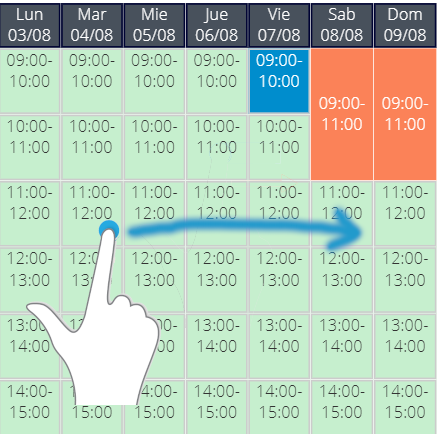
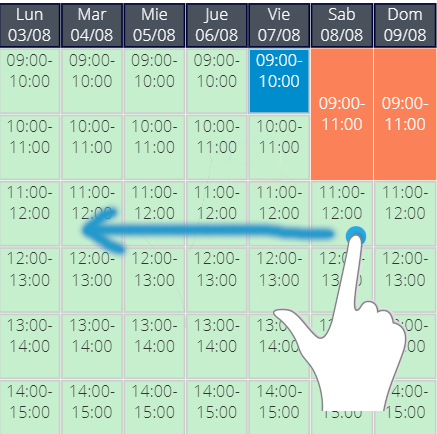
You can go as many weeks forward or back as you like, though actual booking availability is limited by the calendar's settings.
Viewing booking user codes
On smaller screens, it's not always possible to display all the calendar information. That's why what's visible changes depending on your device's orientation:
- Portrait mode: Only minimal info is shown (free or taken).
- Landscape mode: Full details are shown, including the code of the user who made each booking.
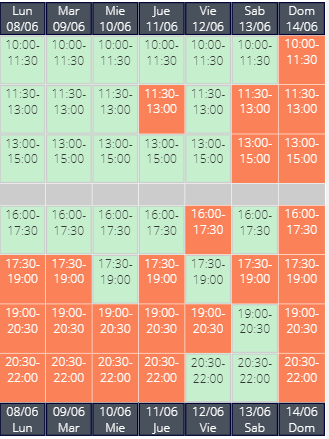
Note: If you're in landscape mode and don't see booking codes, the calendar may be set to "anonymous." In that case, bookings are anonymous by design. You can verify this from a desktop computer: if codes aren't showing there either, the calendar is configured as anonymous.