How to change a calendar schedule in Apoing
Want to change your calendar's schedule without losing existing bookings? Here's the safest way to do it.
⚠️ Changing the schedule directly is not recommended
If you modify a calendar's schedule by creating or changing time blocks, existing bookings will "disappear" from the calendar. They're not deleted — they just stop showing up because the time blocks no longer match. If you revert to the original schedule, the bookings come back.
The only safe exception is a schedule extension: adding new blocks without modifying existing ones.
The best approach: create a new calendar
Follow these steps to make the change without losing bookings or creating overlaps:
Step 1
Look through the current calendar for the date of the last existing booking and note it down.
Step 2
Edit the current calendar and put it in maintenance mode starting from that noted date — for example, 3 months out.
Step 3
Create a new calendar with the new desired schedule. In the maintenance dates for this new calendar, indicate that bookings are unavailable from today through the date you noted in Step 1.
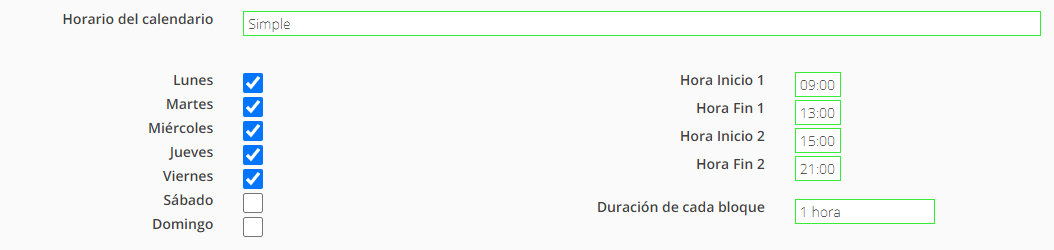
Tip: Give the new calendar a descriptive name, like "Padel starting [date]." This way users will know which calendar to use and when. Once the old calendar is no longer needed, you can rename the new one.
With this approach, users can book on the old calendar up until the changeover date and on the new one from that date onward — no overlaps.
Disabling the old calendar
Once the old calendar has no more future bookings, you can disable it by unchecking the "Enabled" option. It will no longer appear in the community.